CALCULATION SETTINGS BY GROUP
To specify Group(s), a group category must first be assigned to the program area ‘Calculation Settings’. To do so, go to the Group Definitions screen where you can choose a group catego-ry for the ‘Calculation Settings’ using Group Assignment. For more detail on how to do this, see Group Assigning.
After you have assigned a group category for ‘Calculation Settings’, any of the groups in the Group Category selected are then eligible to be selected as the Originating Group. Select groups for Calculation Settings by using the drop-down list. The available groups in the se-lected group category will be shown in the drop-down list.
Once you are done, click the UPDATE button to save the changes.
IN-HOUSE FEES
Home country In-House fees are the internal fees and costs for filing and processing an origi-nating application in the Home Country. As an example, you are a Primary Counsel and have filed an originating application in your Home Country to the official agency. Your attorney fees for processing the application would be included in the estimate for the Home Country.
On the In-House Fees tab of the Calculation Settings screen, you have the opportunity to enable and modify In-House Charges for the Home Country or Countries. These In-House charges are labeled ‘HC.’ For additional information on In-House charges that are not as-signed to the Home Country or Countries, see the In-House Charges section.
Home Country In-House Fees can have different values for each Application Type, by Primary Counsel, and by the Calculation Settings Group.
Sometimes there are Prefiling Costs (i.e., drafting costs) involved in the initial filing. These costs are defined independently and assigned differently from other In-House fees. See the Pre-filing Costs section for more information on configuring these charges.
Default In-House Fees
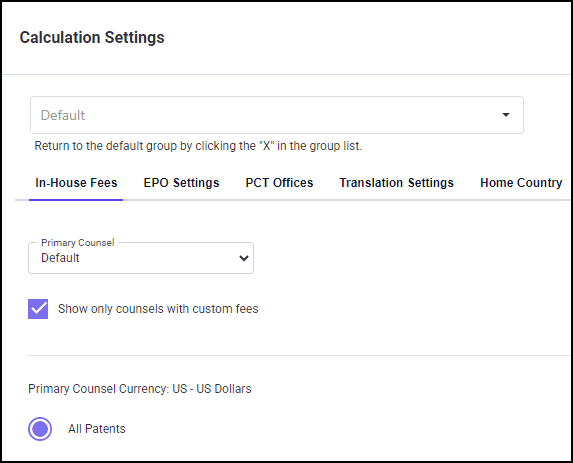
The In-House Fees tab on the Calculation Settings screen allows you to assign Home Country fees after the Group and Home Country selections have been made.
The ‘Primary Counsel’ field is initially set to ‘Default’, and a set of default In-House values is assigned for each application type. You can modify the ‘Default’ fees here, which will go into effect for all counsel. If fees are defined for a specific Primary Counsel, those fees will be ap-plied to patent families where the specified counsel is assigned.
To edit the ‘Default’ costs, select the application type and click the "EDIT FEES" button. The respective application type In-House Fees screen appears, where you can update the fees for each line item in the amount column and save the changes.
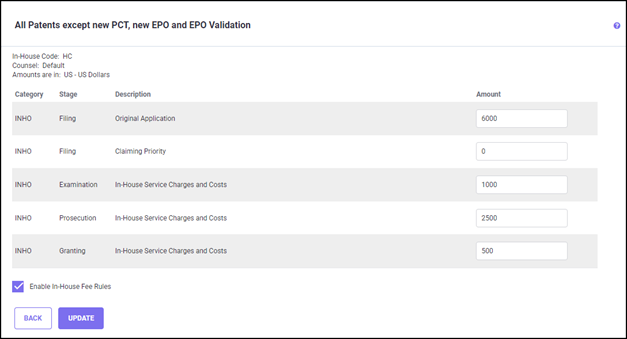
The ‘Enable In-House Fee Rules’ checkbox must be checked to include these fees in the esti-mate report.
Once finished, click the UPDATE button to save the changes.
By Counsel In-House Charges
You may define a different set of In-House charges for each application type by Primary Counsel and assign the Primary Counsel in a family. The In-House charges defined for the Primary Counsel under the Calculation settings will then be included in the estimate for the initial applications filed to the Home Country in the family. Initially ‘Default’ is assigned as the Primary Counsel. To select a different Primary Counsel, use the "Primary Counsel" drop-down list. When "Show only counsels with custom fees" is selected, the "Primary Counsel" drop-down list shows only the counsels that have user defined values.
This counsel is now available on the drop-down list and has a default set of fees that can be edited.
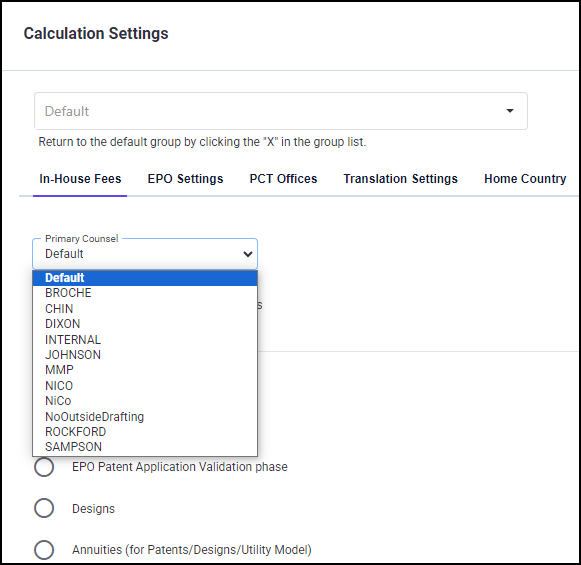
To edit an In-House fees application type by Primary counsel, select a counsel from the ‘Pri-mary Counsel’ drop-down list. Then, select the application type and click the EDIT FEES but-ton. The In-House Fees screen for the selected application type screen appears.
Editing In-House Charges
The selected application type, Primary Counsel and Currency are displayed at the top of the in-House fees screen.
The amounts are grouped by category and by stage (Filing, Examination, Prosecution, and Granting). Amounts are entered in the currency selected on the Calculations Currency tab of the Calculation Settings screen. Only non-zero amounts will be included in the reports.
Check the ‘Enable In-House Fee Rules’ checkbox to activate the In-House Fee Rules so that the In-House Fees defined here are included in the estimate for the application type. Click UPDATE to save any changes.
If the checkbox ‘Enable In-House Fee Rules’ is not enabled, the following warning notification will appear, letting you know these fees will not be activated until the In-House Fee Rules have been activated.

The ‘Enable In-House Fee Rules’ checkbox can also be enabled on the In-House Charges screen. Setting the flag off in either place will cause the checkbox to be unchecked in both places.
Once you make the changes, click the UPDATE button to save the changes.
Click on the BACK button to go back to the Calculation Settings screen.
The In-House charges defined for a Primary Counsel in the Calculation settings are included in the estimates for the initial application to the Home Country in the families where the Primary Counsel and Calculation Settings Group are assigned in the family.
For example, if you file the originating applications mostly to the US using the same Primary Counsel, then you can create a common set of In-House fees under the Default settings: the Calculation Setting Group is Default, the Home Country is US, the currency is US$, and the Primary Counsel is Default. In-House charges for the various application types will then be added to the estimate for all the initial filings to the US.
However, if you also file originating applications to some of the European countries with var-ious Primary Counsel handling the originating applications, you may have a different Calcula-tion Settings Group defined and create separate sets of In-House charges for each of these Primary Counsel defined under the Calculation Settings Group.
For example, suppose you usually file originating applications under the “European Division” in Germany and UK, and the originating applications in Germany are handled by the Primary Counsel ‘Broche’ and those in UK are handled by ‘Arsha’. Select “European” as the Calcula-tion Settings Group from the Group drop-down list, select Germany and UK as the Home Countries, and set the default currency for the Calculation settings group as Euros.
Select the Primary Counsel ‘Broche’ and ‘Arsha’ from the “Primary Counsel” drop-down list. Select the application type and click the EDIT FEES button to change the In-House Fees for the Primary Counsel as per the fees charged by them for each application type. Let’s say, for the Primary Counsel ‘Broche’, you have edited the In-House Fees for the application types “All Patents”.
The above In-House charges will then be included in the estimate report for Germany for any family that has Germany as the country of initial application and ‘Broche’ as the Primary Counsel selected in the family’s Primary Counsel option, as seen in the following Family De-tails report.
See In-House Charges for detailed information on working with other In-House charges sets (other than the ‘HC’ set).
Include Associate Fees
Select this option if you wish to see Associate Fees for the Home Country. By default, a Home Country includes only Official fees, Home Country In-House Charges, and Annuities. By select-ing this option, Associate Fees will also be included in the estimate.
Allocate In-House Charges to Associate Category
Select this option if you wish to allocate any In-House Charges to the country-specific Associ-ate Charges category. When the checkbox "Allocate In-House Charges to the Associate cate-gory" is checked, it will affect estimates for the Home Country that have been assigned to the Calculation Settings Group.
EPO SETTINGS
You can navigate to the EPO Settings tab from the Calculation Settings screen.

Files Patents to the EPO Directly
The 'File Patents to EPO Directly' checkbox is available for EPO attorneys who wish to file ap-plications directly to the European Patent Office without the assistance of a foreign associ-ate. Checking this option will affect estimate calculations as follows:
· No associate charges will be included for the EPO application, and
· For estimates with an EPO Validation phase, no 'Forwarding by EP Associate' charge will be included.
Charge for Forwarding by EP Associates
Patent filings may be done through an associate rather than filing to the EPO directly. Check-ing the 'Include Forwarding Charge to Each Validation Country' checkbox allows you to speci-fy your own 'Forwarding by EP Associate' charge in the filing stage for each EPO Validation Country. A default system amount will be used unless a non-zero value is specified in the 'Amount' box.
Once you are finished, click SAVE to save the changes.
PCT OFFICES
You can navigate to PCT Offices tab from Calculation Settings screen, where you can set the default Receiving Office, International Search Authority, and International Preliminary Exam Authority defaults for the PCT filings.

To change the assigned defaults, use the drop-down list to select a country for each PCT of-fice you would like to change.
Once you are finished, click the UPDATE button to save the changes.
TRANSLATION SETTINGS
The default Language of Application in the program is set to be the language of the country of license registration. The Language of Application can be initially set to the language of the Home Country selected, and translation costs added to the estimate are calculated based on the default language of the country of license registration. To change this for the ‘Default’ Group or for the other Calculation Settings Groups, select the Translation Settings tab. On this tab, you can set the following attributes as shown in the screen shot below:
1. The Language of Application
2. The amounts to add to estimates for re-used translations
3. The number of words per page of translation
4. A re-use flag to notify the program to reduce cost estimates due to the re-using of trans-lations
5. The costs for translation into individual languages
6. A fixed number of pages for translation and/or percentage of original pages for transla-tion to use for calculating translation costs in the continuation and divisional applica-tions

Charges for translation settings are defined by factors that are not based on standard ‘rules’ and therefore are separate from the regular sets of ‘user-defined’ fee rules. For example, the translation settings are based upon the language of the translation.
Language of Application
To change the default Language of Application for the Group, simply click on the drop-down list and select another language as the default Language of Application.
Number of Words per Page
The cost of translations is adjusted based on the 'Number of words per page' to be translat-ed. The program calculates costs based on a default of 300 words per page. For example, if you enter 225 in the 'Number of words per page' field, the translation costs used by the pro-gram will be multiplied by 0.75 (i.e., 225 divided by 300).
If you specify the cost per page for a translation into a particular language by using the ‘Costs for Individual Languages’ button, the cost entered there continues to assume 300 words per page. If you have also entered a number of words per page different from 300, then the translation cost per page will be adjusted accordingly, as described above. See the Costs For Individual Languages section for further discussion on this setting option.
Re-Use Translation
In certain countries, it is possible to submit an application in one of several languages. In Switzerland, for example, the application may be translated and submitted in French, Ger-man, or Italian. In this case, the program re-uses the translation for a country using one of these languages.
Amounts may be specified in the fields entitled 'Percentage of original translation cost to add to estimate for re-using translation' and 'Fixed amount to add to estimate for re-using translation.' You may use one or both fields to meet your requirements (see the example below). The cost estimate for re-used translations equals the fixed amount plus the percent-age of the original translation cost (+ VAT).
For example, let's say you specify $50 for the fixed amount and 10 for the percentage (with a VAT of 15%), there are 10 pages for translation, and the original cost-per-page for a transla-tion was $38; then the re-use cost would be:
$101 =$50 + $38 (which is .10 * $38 * 10 pages) + $13 (which is VAT @ 15% on $88)
For the following more detailed Spanish translation examples, use these assumptions:
1. An average cost-per-page of $38 for Argentina, $49 for Mexico, and $43 for Spain. (Note: The translation for Argentina is re-used since it has the lowest cost-per-page.
2. A patent family has the original patent application (10 pages) translated into Spanish for Argentina, Mexico, and Spain.
3. A Value-Added-Tax (VAT) charge of 21% is added for Argentina, 15% for Mexico, and 0% for Spain.
Let's look at a couple of examples.
Example 1: If the fixed amount is set to 100 and the percentage of the original translation cost is set to 0%, the cost estimate for a Spanish translation would be as follows.
Argentina: Lowest price translation
Translation cost = 10 pages * $38 per page = $380
21% VAT = $380 * .21 = $79.80, rounded to $80
Total Translation Charge = $380 + $80 = $460
Mexico: Re-use translation for Argentina
Translation Re-Use = 0% of $380 Original Translation = $0 + Fixed Amount $100 = $100
15% VAT = $100 * .15 = $15
Total Translation Charge = $100 + $15 = $115
Spain: Re-use translation for Argentina
Translation Re-Use = 0% of $380 Original Translation = $0 + Fixed Amount $100 = $100
0% VAT = $100 * .0 = $0
Total Translation Charge = $100 + $0 = $100
Example 2: Let's say you want to adjust your re-use estimate based on a percentage of the original translation cost and then add $50 for fixed costs associated with handling the re-used translation. The fixed amount is set to $50 and the percentage of the original translation cost is set to 10%. The cost estimate for the Spanish translation would be as follows.
Argentina: Lowest price translation
Translation cost = 10 pages * $38 per page = $380
21% VAT = $380 * .21 = $79.80, rounded to $80
Total Translation Charge = $380 + $80 = $460
Mexico: Re-use translation for Argentina
Translation Re-Use = 10% of $380 Original Translation = $38 + Fixed Amount $50 = $88
15% VAT = $88 * .15 = $13
Total Translation Charge = $88 + $13 = $101
Spain: Re-use translation for Argentina
Translation Re-Use = 10% of $380 Original Translation = $38 + Fixed Amount $50 = $88
0% VAT = $100 * .0 = $0
Total Translation Charge = $88+ $0 = $88
Cost for Individual Languages
Clicking the button labeled 'Costs For Individual Languages' takes you to the Translation Costs screen, as shown below.
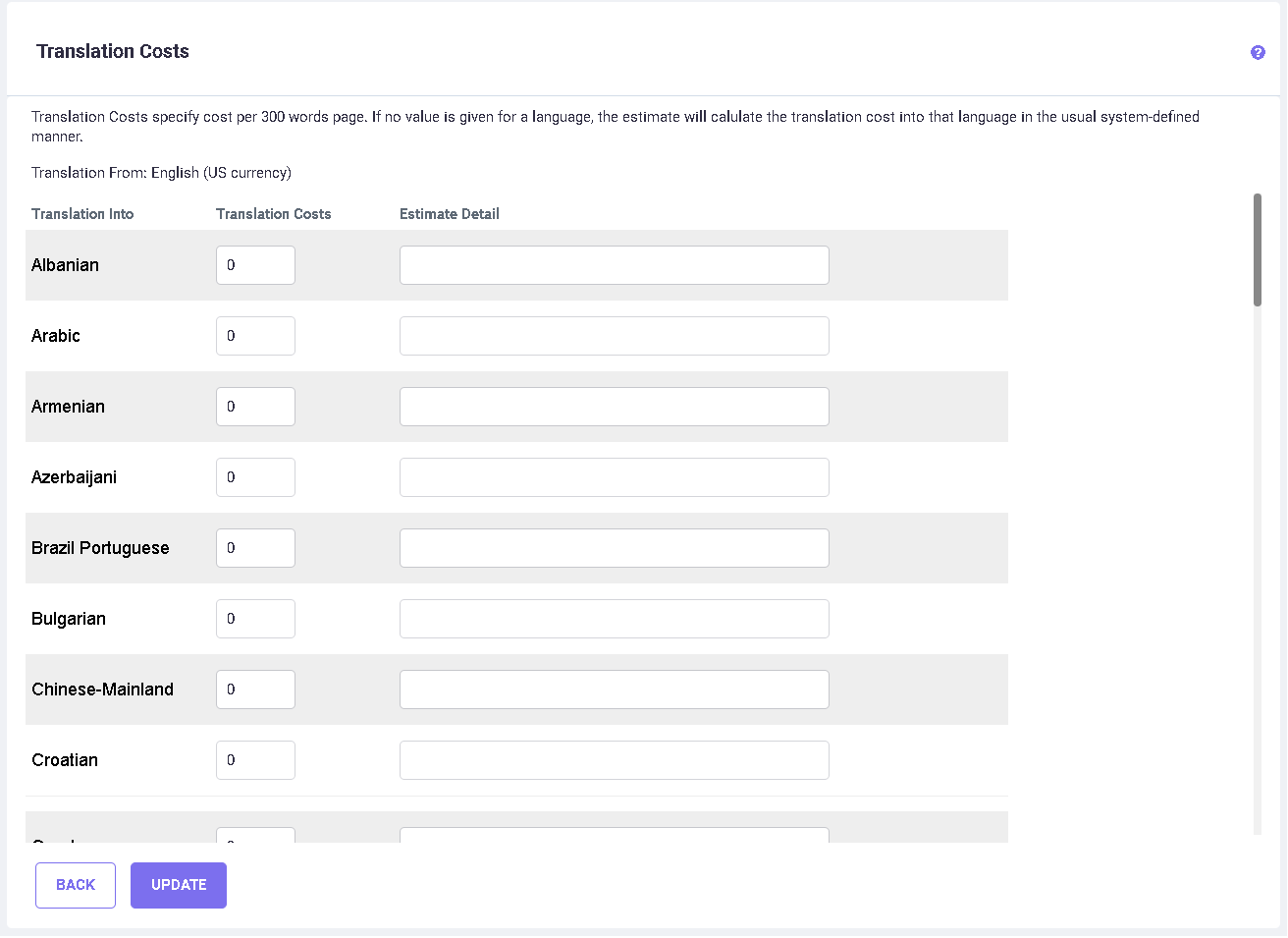
You can set your own language-specific translation costs here. The non-zero value added here will be used for calculating the cost for translating a page from the language of the orig-inating application to the selected language, based on the number of words per page. A list of the languages available in the system appears on the left.
To enter a translation cost for one or more languages, click into the field next to the name of the language, and enter a per-page cost. The value given should be the cost of translating a 300-word page (Default) or a page with a different value specified for ‘number of words per page’. A previously entered translation cost amount may be reset to zero. For languages with a zero value, the program will calculate translation costs using system defaults. To zero out the translation cost for a country in the estimate, enter .001 in the Translation Costs field.
In the screen, for a non-zero translation cost entered, some descriptive text (e.g., the name of the translator) may be entered in the column entitled ‘Estimate Detail’. This text will be used instead of the default translation cost description displayed in the Family Details report.
When all new data has been entered, click the UPDATE button to save the changes. Click the BACK button to return to the Calculation Settings screen.
Continuation and Divisional Applications
The last set of options in the Translation Settings tabs help you to determine the number of pages for translation for the subsequent filings.
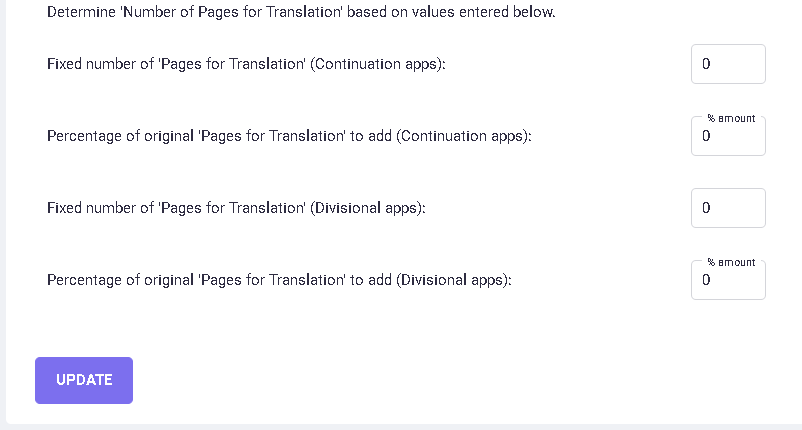
For the Continuation and Divisional filings, you can determine the number of pages for trans-lation and percentage of original pages for translation using the fields provided.
You can enter a numeric value for the ‘Fixed number of Pages for Translation’ which will be used instead of the number entered for ‘Pages for Translation’ in the Application Infor-mation-Default screen.
Alternatively, you can enter a percentage value which will be used to calculate the number of pages for translation based on the percentage of the number entered for ‘Pages for Transla-tion’ in the Application Information-Default screen.
The values entered will be reflected in the estimates for the Continuation and Divisional fil-ings in the families to which the corresponding Calculation Settings Group is assigned in the Edit Basic Details screen of the family.
To remove all translation costs for Continuation or Divisional applications, enter 0.001 in the respective boxes for ‘Fixed Number of Pages for Translation'.
Once you have entered the values in the respective boxes, click the UPDATE button to save the changes.
HOME COUNTRY
The ‘Home Country’ tab on the Calculation Settings screen allows you to select one or more countries as Home Country for each group. This is useful when you are filing originating ap-plications in multiple European countries through European attorneys who can process cases within Europe without involving a local agent, thus eliminating foreign associate fees in these countries. There is also an option to leave the field blank so that no countries are selected.
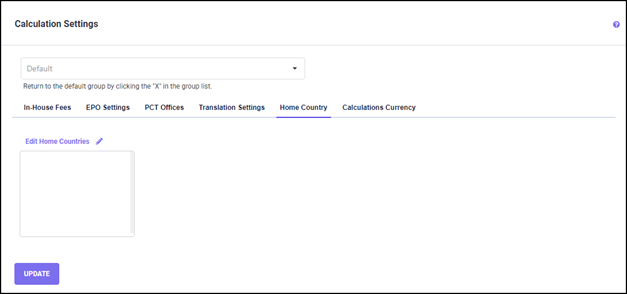
To select a home country, click the "Edit Home Countries" link. The ‘Edit Home Countries’ pop-up screen appears, which allows you to select one or more Home-Countries for the se-lected Calculation settings group. Double click on a country name in the "Available Coun-tries" list to add to the "Selected Countries" list.
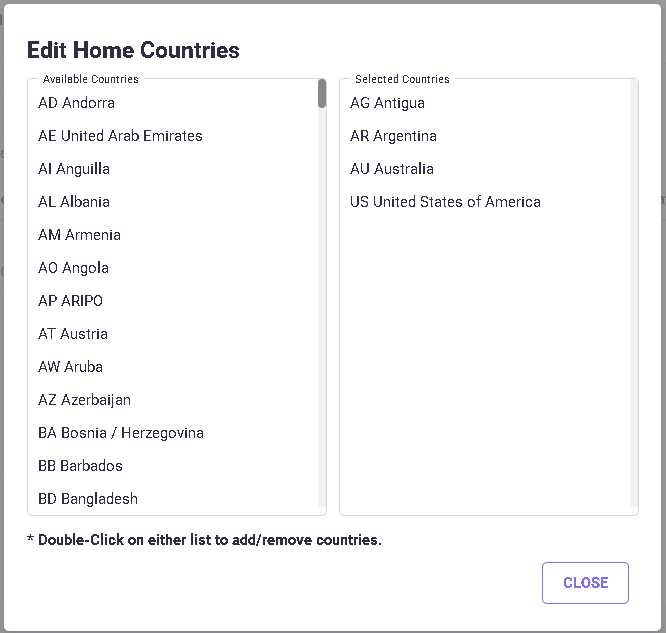
Click the CLOSE button to close the Edit Home Countries pop-up screen and return to the Calculation settings screen.
The estimates for the Home Country within the selected group will include Official fees and Annuities, as well as In-House fees if enabled. The program does not estimate associate costs for the Home Country and does not estimate translation costs for the Home Country or for any country using the same language as a Home Country.
The settings defined for the calculation settings group will apply to all the Home Countries selected under the group.
To remove the Home Country, click the Edit Home Countries link, and double click on a coun-try from the "Selected Countries" list.
CALCULATION CURRENCY
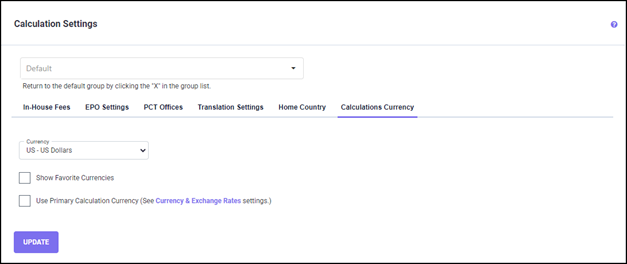
To set the Currency for the Calculation Settings Group, choose a currency from the ‘Currency' drop-down list.
If the “Favorite Currencies” checkbox is checked, only the favorite currencies selected on the Currency & Exchange Rates > Edit Favorite Currencies screen will show up in the selection.
When the "Use Primary Calculation Currency" checkbox is enabled, the currency selected on this screen will be used for calculating the cost.