1. Summarize potential savings on maintenance costs in case they are eliminated from your budget.
2. View Excel report tabs with summaries as well as details by country and category. (actual official fees vs. estimated associate and other fees).
3. Gain visibility of where ongoing payments are being made for obsolete products no longer supported.
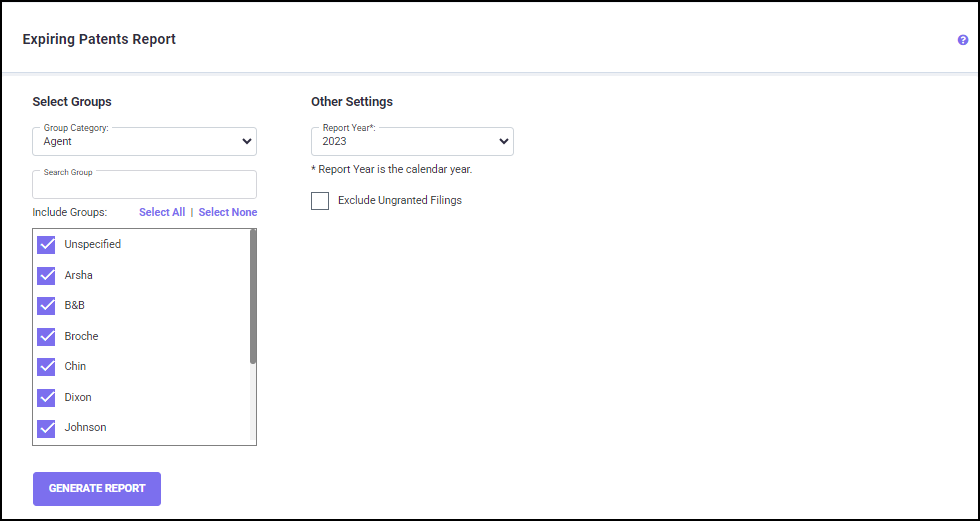
To run the Expiring Patents report, follow the below steps:
1. Select a ‘Group Category’ from the drop-down list. The groups are displayed for the selected group category.
2. Select the groups from the "Include Groups" field by checking off the checkbox next to the group. You can choose specific group(s) under a category by selecting the groups that you want to be included in the report.
3. Select a ‘Report Year’ from the drop-down list.
4. Check off the ‘Exclude Ungranted Filings’ checkbox if you do not want to include the filings that were imported without grant dates and were calculated by the software.
Once you have set all the filters, click on the GENERATE REPORTS button to initiate calculations.
You will be directed to the Download Reports screen, where the generated Expiring Patents report is ready for download.
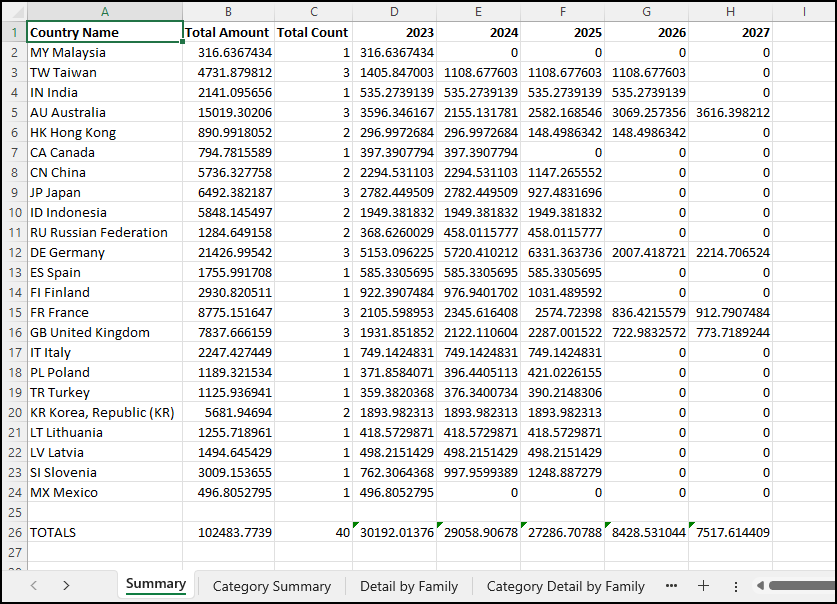
The results shown here are the maintenance costs for the filings in each country which will expire in the next five years, starting from the year selected in the ‘Report Year’ option. The amounts are the maintenance costs, and the counts are the number of Family IDs that are being reported for the country.
The Excel report contains the following spreadsheets:
· Summary – per country, with totals for all countries, sorted by Total Amount.
· Category Summary – Expanded Summary report with Official, Associate, and In-House breakdowns, sorted by combined Total.
· Detail by Family – Detail report sorted by Family ID.
· Category Detail by Family – Category Detail report sorted by Family ID.