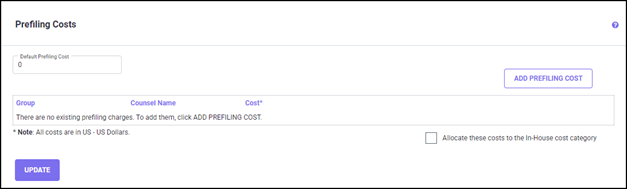
Specifying a prefiling cost can be as simple as entering only the ‘Default Prefiling Cost’ which will then show up on the Family Detail report and be accumulated and shown on the spread-sheets for the initial application.
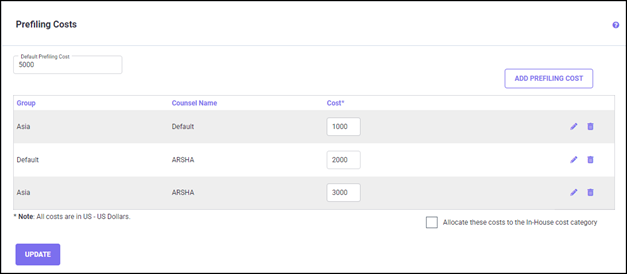
The ‘Default Prefiling Cost’ can be overridden by other prefiling costs entered by Group and/or Counsel, if the Patent Family has a matching Group and/or Counsel.
The Group and Counsel grid on the Prefiling Costs screen provides a means of entering more specific prefiling costs. On each line, a cost can be specified in the above figure:
1. For a combination of Counsel and Group by selecting values for both
2. For a particular Counsel that applies across all Groups by leaving the Group field blank, and selecting a Counsel Name
3. For a particular Group that applies across all Counsel by leaving the Counsel field blank, and selecting a Group
To specify group(s) with a Prefiling Cost, a group category must be assigned to the program area ‘Pre-filing Charges’. If this step has not been done, you will not be able to select groups while adding new prefiling costs.
For more information on how to add prefiling costs by group and/or primary counsel, see the Adding Prefiling Costs section. Once you are done, click the UPDATE button, to save your changes.
ADDING PREFILING COSTS
To add Prefiling Costs by counsel and by group, click the ADD PREFILING COST button and the Add Prefiling Cost Details pop-up screen appears.

Select the Group Name and Counsel using the drop-down list, and enter the amount in the Cost field, as seen in the above figure.
Once you have made the changes, click the UPDATE button to save the changes. Click CLOSE to close the pop-up screen.
To add Prefiling Costs only by counsel, leave the Group box blank, select the Counsel Name from the drop-down list, and enter the amount in the Cost field.
To add Prefiling Costs only by group, select the Group from the drop-down list, leaving the Counsel Name field blank, and enter the amount in the Cost field.
Amounts entered are used in the same order as above for the priority order on a Patent Family. If a value is entered for the Counsel and Group, that amount is used. Then, if a value is entered for the Counsel and the Group is ‘Unspecified,’ that amount is used. If neither of these rules applies, then if a value is entered for the Group and the Counsel is ‘Unspecified,’ that amount is used.
By default, these prefiling charges specified here are added in the estimate for the initial fil-ings as Associate charges. If you would like to allocate these costs to the In-House cost cate-gory instead of the Associate charges category, click on the checkbox "Allocate these costs to the In-House Category" checkbox.
Click the UPDATE button to save the changes.
EDITING PREFILING COSTS
To edit Prefiling Costs, go to the Prefiling Costs screen. Select the row you wish to edit and click on the edit icon. The Update Prefiling Costs Details pop-up screen will then appear.


If you wish to update the Default Prefiling Cost charge, enter the new cost in the "Default Prefiling Costs" field.
Click the UPDATE button to save the changes. Click the CLOSE button to exit the Update Pre-filing Costs Details pop-up screen.
DELETING PREFILING COSTS
To delete the default Prefiling Costs, enter zero in the "Default Prefiling Cost" field.

If you wish to delete any of the costs defined by Group and/or Counsel, click the DELETE icon on the appropriate row.
Once the selected Prefiling cost row is deleted, you will receive the following notification.