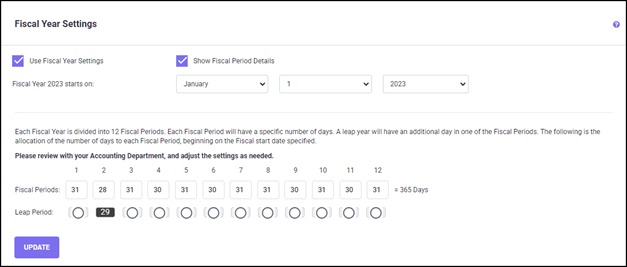
The ‘Show Fiscal Period Details’ checkbox allows you to define and customize fiscal year pe-riods. A fiscal year is divided into 12 periods. You can define the length of the periods based on your requirements. By default, each fiscal period is the same as the calendar month corre-sponding to the fiscal period, depending on the fiscal year start date. Therefore, the fiscal periods for a standard year (with 365 days) are either 31, 30, or 28 days. However, for leap years which have 366 days, the fiscal period corresponding to the February month is 29 days. Therefore, based on the selected month, the fiscal year calendar will be generated. If the se-lected year is a leap year, then you can choose a leap period for the same. For example, as shown in the figure above, if the fiscal year starts on 1st April 2019 and ends in March 2020, the first fiscal period which corresponds to April 2019 is 30 days and so on; since 2020 is a leap year, it has fiscal period 11 specified as 29 days.
Once you have made changes, click the UPDATE button to save the changes.