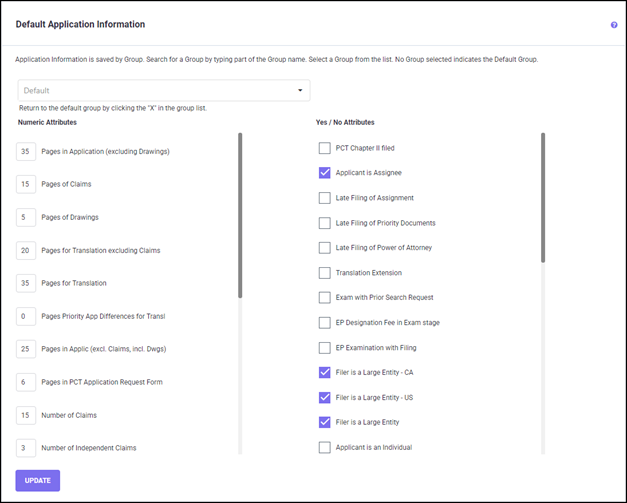
Default Application Information by Group
You may also specify these defaults at a group level. For example, you may want to set dif-ferent application attributes for patent applications based on different technologies. Let’s say that your patent applications related to biotechnological inventions have a higher num-ber of pages in the specification when compared to pharma inventions, owing to sequence listings getting added. You can then set different Default Application Information values for these different technology groups (Bio-tech and Pharma in this case) by selecting the Group Category ‘Technology’ for this program area.
Once these groups, for which you have defined different Application Information Defaults values, are assigned to a new patent family, the costs for these specific families are calculat-ed based on the attributes defined on this screen. More precise values may be entered at the patent-level using the Application Information screens.
To set Default Application Information by groups, you must select a group category under Group Assignments for Default Application Information in the Group Definitions screen.
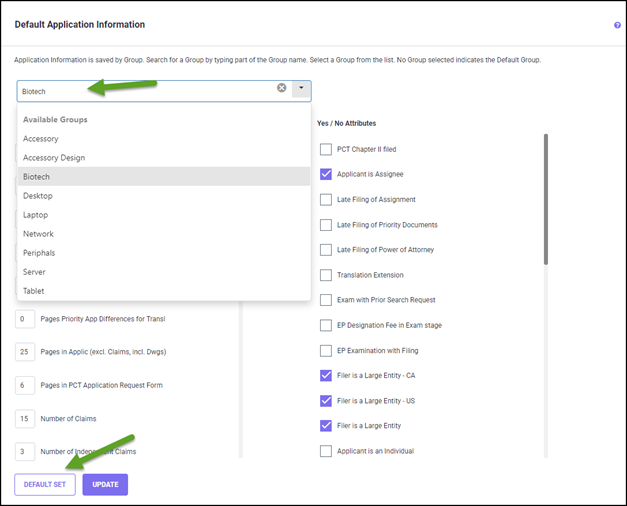
Here you can click on each Group for which you wish to set up a separate set of Default Ap-plication Information. (The initial values will be copied from the main Default set.)
When you choose a group under a category other than Default, you can see the DEFAULT SET button on the screen which helps you to overwrite the user defined values with system de-fault values.
Once you have entered the Default Application Information values/selections, click the UPDATE and confirm your selection to save the changes.