The default value for each country will be displayed when you select a country from the "Countries" drop-down list. The user-defined Timeline settings, once entered, will take prec-edence over the system-defined settings. The countries for which the timeline values have been modified are highlighted in the country list.
Click the RESET button to reset the user defined values to system default values.
PATENT TIMELINE SETTINGS - DIRECT
The Patent Timeline Settings - Direct tab helps you to customize the prosecution settings timeline. You can customize it by group or country. The associate charges per action as well as Patent time to grant can be tweaked as needed. The timeline between office actions can be customized using the corresponding Response icons or filing desired values in the box.
Countries: Using this option, custom timeline values can be set for individual countries. On this page, all countries applicable for direct filing will appear. The "show only countries with custom settings" option, when selected, shows only countries which have custom values.
Currency can be changed here, and it will be reflected in the report.
Time to Grant(years) year can be customized here. This value is converted into months and appears at the end of Prosecution slider.
Associate Charge Per Action: This is the cost per prosecution action. Here Zero denotes sys-tem values. If you have entered any non-zero value here it will replace the system val-ue.
The RESET button helps you to reset the user defined values with system default values.
Prosecution Slider:
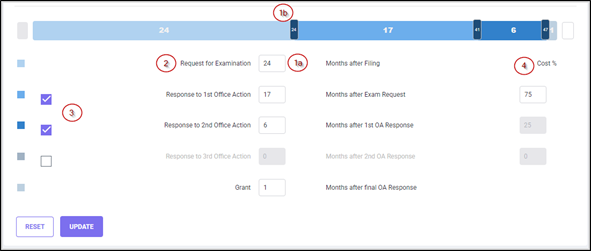
The prosecution slider is described in detail below:
1. Timeline: You can change the timeline between office actions by entering the values in the box(1a) or by moving the corresponding response icon(1b).
2. Response for Examination can be changed here, and it will be reflected in the report. This option is available only for countries where it is applicable.
3. Response to Office Actions: Using this option, custom timeline values can be set for individual countries. By default, two office actions are enabled. You can add a third office action by enabling the checkbox (3). The amount is then divided into 1/2/3 equal or unequal payable buckets (based on the cost % (4)) between either the known Filing Date or the estimated Examination Date and the estimated Grant Date.
4. Cost % is the cost amount per prosecution action.
Timeline by Group
There are many factors that affect the timelines. For example, the time of grant for patent applications may vary depending on the following:
· technology
· countries where the applications are filed
· how well a specification is drafted
· the attorney handling the case
· whether all formalities are met during filing
· other factors
Therefore, you may need to vary the timeline settings for various countries by different groups like Technologies, Attorneys, Divisions, Managers, etc. The Timeline Settings in the program allow you to customize different timelines for countries by groups. Based on the timelines defined here for the group, the costs in the estimate reports will appear in specific years for countries in a specific set of families (to which the group is assigned).
To specify group(s) with Timeline Settings, a group category must be assigned to the program area ‘Timeline Settings’.
Once you've selected which groups to use, you can customize the Timeline settings for a par-ticular group by selecting the group from the ‘Group’ drop-down list. Define the timeline set-tings as described above and click the UPDATE button when completed.
PATENT TIMELINE SETTINGS - PCT
This tab is similar to the Patent Timeline Settings - Direct page. The only difference is that PCT filing countries alone will be available in the countries list.

OTHER TIMELINE SETTINGS
The Other Timeline Settings tab allows you to customize the timeline settings for Design and Utility Model applications.

Group Category: allows you to override the system values with shorter time periods.
Country: Using this option, custom timeline values can be set for individual countries.
Design Years to Issue: Here zero denotes system values. If you have entered any non-zero value here, it will replace the system value.
Utility Model Years to Grant: Here zero denotes system values. If you have entered any non-zero value here, it will replace the system value.
The RESET button just resets this page back to the system defaults defined in your setup op-tions.
Once the group category is selected, select the country from the drop-down list and add years in the "Utility Model Years to Grant" and/or "Design Years to Issue" fields. Click the UPDATE button to save the changes.