You may define Group Categories and Groups based on your data and needs, and these Groups may then be used for data selection, report summaries, and to define various cost factors. For example, a Group Category could be ‘Technology’, and within that Category the Groups could be ‘Accessory’, ‘Desktop’, ‘Laptop’, etc. You can categorize and total costs by Group within a Group Category and create specific settings (e.g., cost factors like number of pages or number of claims in your application, etc.) by Group.
For example, grouping patents by ‘Technology’ enables the analysis of portfolio costs to be totaled or customized by each type of technology within the Group Category.
These Group Categories and Groups may be populated through the import process or may be manually added in the program.
You may add, delete, rename Group Categories. Also, you may change assignments on these Group Categories.
To view the Groups or to add, rename or delete Groups within each Group Category, click on the Group Category name (in the left list box) to highlight it. Groups in the highlighted cate-gory are then displayed in the right list box.
DEFINE A GROUP CATEGORY
Group categories and Groups may be populated through the import process or may be man-ually added in the program.
Add a Group
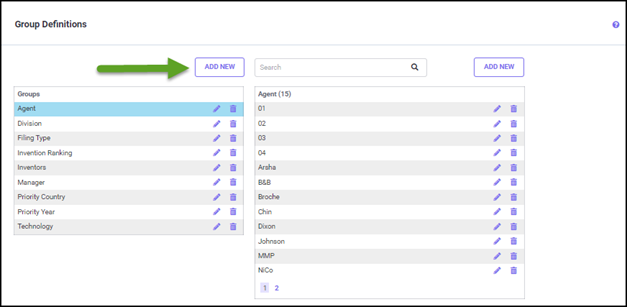
To add a new Group, click ADD NEW button and the "Add Group Category" pop-up screen appears.
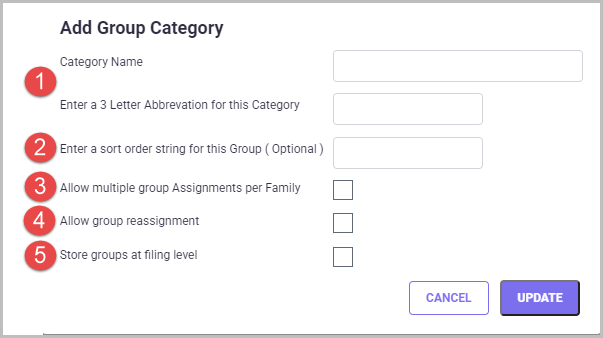
1. Type in the new Group Category Name in the "Category Name" field and enter a 3-letter abbreviation for this new Group in the next field.
2. To put this Group category at the top of the Group list, enter ‘1’ in the ‘Enter a sort or-der string for this Group’ field. You can select the order of each of your Group categories in this fashion by numbering them from 1 to 99. If there is no number in this field, it will be defaulted to sort alphabetically in the Group category list.
3. If you wish to assign more than one Group from a Group Category to a patent family, check the ‘Allow multiple group Assignments per Family’ checkbox. This will allow you to select more than one Group from a Group Category on a patent family (i.e., if more than one division has ownership of the Patent or if there is more than one inventor for a pa-tent application, etc.). Such Multiple Group Categories are indicated with * next to the Group Category name in the Group Definitions screen.
4. An ‘Allow group reassignment’ checkbox is available for when you need to change the group assignment for multiple patent families (see Group Reassignment). Group Catego-ries selected as Multiple Group Categories are not allowed to be selected for Group Re-assignment.
5. A ‘Store groups at filing level’ checkbox is available for use for a New Group category if you wish to assign different Groups at the filing level within a family. This option is not allowed to be selected when any of the other two options ‘Allow Multiple Group As-signments’ and ‘Allow group reassignment’ are checked for a New Group category.
Group Categories can be used in various ways throughout the program to define defaults by Group Assignment. A Group Category with ‘Allow Multiple Group Assignments’ and ‘Store groups at filing level’ activated are not an available option for Group Assignment. In addi-tion, a Multiple Group Category will not have grand totals on Value Reports since this would skew the totals. Once the ‘Allow Multiple Group Assignments’ checkbox is checked and saved, you cannot uncheck this option and save while editing a Group.
Once you have made changes, click UPDATE to save the changes.
Edit an Existing Group
To edit/rename an existing Group Category, click the edit link next to the Group category name. The following screen appears.
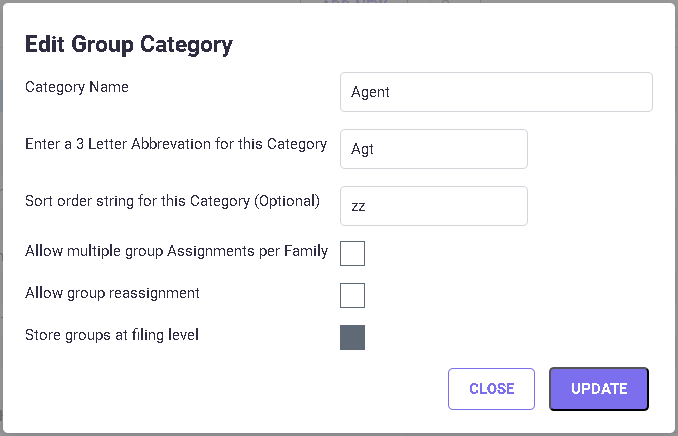
The ‘Store groups at filing level’ checkbox will be inactive while editing any Group Category.
Click UPDATE to save any changes and return to the Group Definitions screen. To return without saving any changes, click CANCEL.
Delete an Existing Group
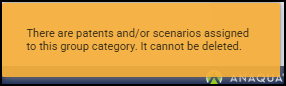
Once one or more patent families have been assigned to a Group category, neither the Group nor the Group Category can be deleted until all the associated patent families have been reassigned to another Group.
If the Group Category is assigned to a patent family or scenario while trying to delete it, you will get the below warning notification.
To delete an obsolete Group Category and all its associated Groups, click on the delete icon next to the respective Group Category.
Allow Group Reassignment
Should you want to change the assigned Value on multiple patent families at once, the ‘Al-low group reassignment’ is available for your use. Groups may be reassigned for a variety of purposes such as identifying patent families to abandon for cost savings or to try out differ-ent patterns of Projected Filings. For more information refer to the Group Reassignment Sec-tion.
DEFINE A GROUP
Once a Group Category has been created, Groups within that Group Category can be defined. First, select the Group Category name by highlighting it (in the left list box), making the asso-ciated Groups accessible.
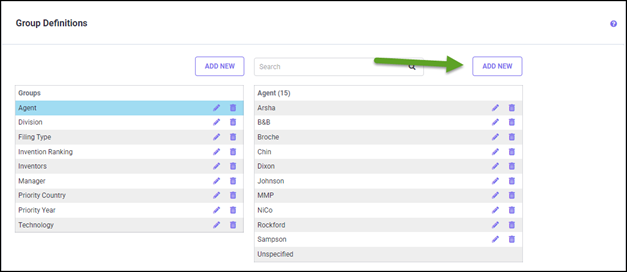
Add a Group
To add a new Group, click the ADD NEW button and the "Add a Group" pop-up screen ap-pears.
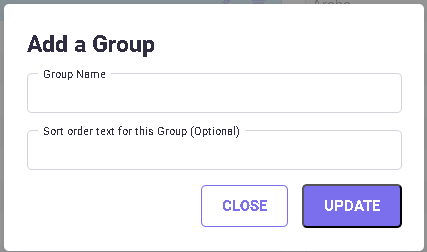
Type the new Group name and sort order in the respective fields and click UPDATE to save the changes.
To put this Group at the top of the Groups list, enter ‘1’ in the ‘Enter a sort order string for this Group’ field. You can select the order of each of your Groups in this fashion by number-ing them from 1 to 99. If there is no number in this field, it will be defaulted to sort alphabet-ically in the Groups list.
Edit a Group
To edit/rename an existing Group, click the Group name in the list box, and then click the edit icon. The Edit Group Pop-up screen appears.
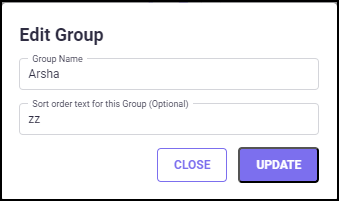
Edit the Group name or sort order as needed.
Click UPDATE to save any changes. To return without saving any changes, click CANCEL.
Delete a Group
Once one or more patent families have been assigned to a Group, the assigned group can be deleted but the Group Category can be deleted until all the associated patent families have been reassigned to another Group.
If the Group Category is assigned to a patent family or scenario while trying to delete it, you will get the below warning notification.
To delete an obsolete Group Category and all its associated Groups, click on the delete icon next to the respective Group Category.
GROUP ASSINGMENT
In the Group Definitions screen, you can assign a Group Category to a given program area using the Group Assignment settings.

This feature is very useful if you would like to modify the costs for specific patent filings in the portfolio without affecting the costs for the rest. You may have a different set of the cost factors defined by Group Categories under a program area (e.g., ‘Default Application Infor-mation’, ‘Prosecution Settings’, etc.) and then assign these Groups to a specific set of patent families in your portfolio. This way, only the costs of filings in families to which the Group is assigned will be affected by the cost factors defined for the Group. For example, suppose, rather than using one global set of defaults, you want to specify a different set of ‘Default Application Information’ for a set of patent families filed by a particular Group (e.g., Europe-an Division) under the Group Category ‘Division’.
Setup Steps:
1. Click on the drop-down arrow corresponding to a program area under the Group As-signment for each program area, and choose a Group Category (e.g., select the Group ‘Division’ for the program area ‘Default Application Information’). Click UPDATE after se-lecting the Group Category to save the changes.
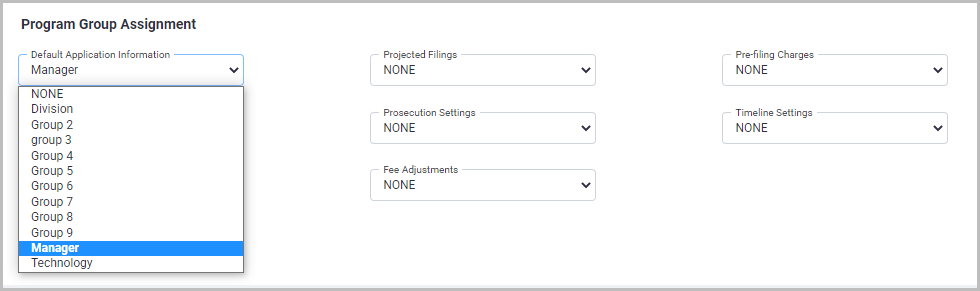
2. Go to the chosen program area screen and you will see the Group Category updated. Use the Drop-down arrow to select Groups for which you want to define a different set of values.
3. Select a Group from the drop-down list and modify the "Default Application Infor-mation" values for the selected Group (e.g., for the Group ‘European’) and save your changes.
4. Assign the Group(s) to patent families for which you want to include the different set of Default Application Information for calculating costs.
Currently, the program areas available to accept Group designations are Default Application Information, Projected Filings, Pre-filing Charges, Calculation Settings, Prosecution Settings, Timeline Settings, Early Abandonment, and Fee Adjustments.