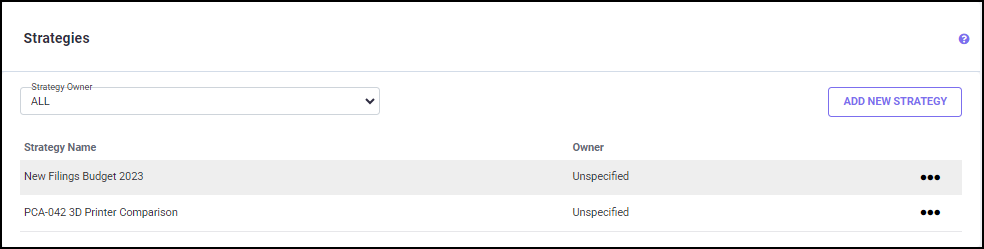
The Strategies screen lists all the strategies that have been defined and has options to add a new Strategy, edit an existing Strategy, clone a Strategy, and delete a Strategy. If there are no strategies yet, the list will be empty. To add a new Strategy, click ADD NEW STRATEGY.
ADD NEW STRATEGY
When you click on the ADD NEW STRATEGY button in the Strategies screen, the Add New Strategy screen below will appear.
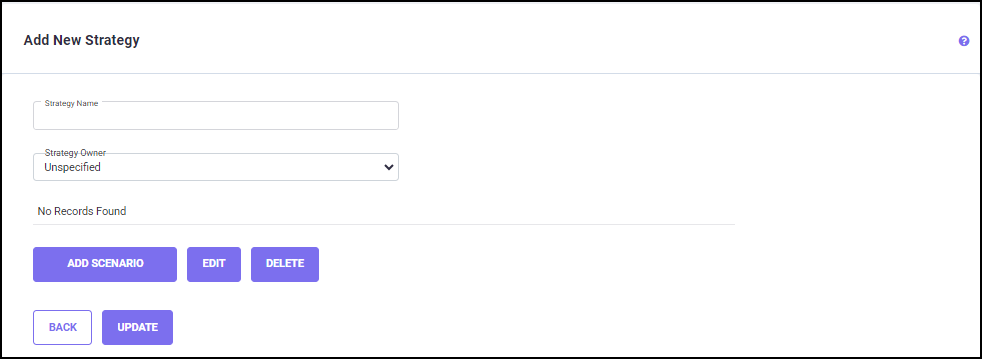
On the top portion of the screen, you can specify the Strategy Name in the respective field and select a Strategy Owner name from the drop-down list. You can add/update Strategy owners from the Scenario Owners screen.
A newly created Strategy must contain one or more Scenarios that can be added using the ADD SCENARIO button on the Add New Strategy screen.
Please use the below links to navigate to the corresponding Add, Edit and Delete scenarios sections.
Click UPDATE to save the changes made on the Add New Strategy screen.
Click BACK to go to the Strategies screen without saving the changes.
ADD SCENARIO FILING DETAILS
Clicking on the ADD SCENARIO button on the Add New Strategy screen leads you to the Add Scenario Filing Details screen (shown below).
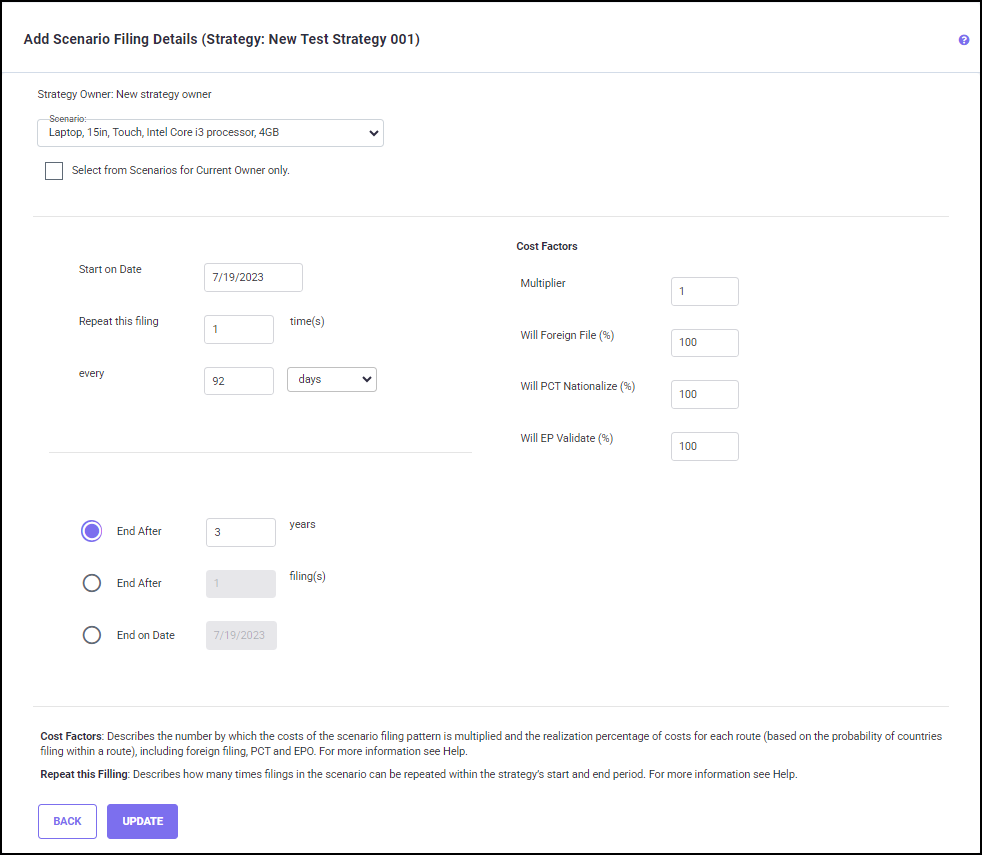
On the top portion of the screen, the strategy name and the owner’s name selected in the previous screen are displayed. You can choose a scenario from the "Scenario:" drop-down list. By checking the ʻSelect from Scenarios for Current Owner onlyʼ checkbox you can narrow down the list of scenarios for selection to the ones from the current Scenario Owner. After selecting a scenario, the below factors can be modified.
· Start: date to initiate the strategy
· End: end time of the strategy
· Repeat this filing: number of times filings in the scenario can be repeated within the strategy’s start and end period
· Cost factors: the number by which the costs of the scenario filing pattern is multiplied and the realization percentage of costs for each route (based on the probability of countries filing within a route), including foreign filing, PCT and EPO.
The “Start on Date” field specifies a particular date on which the Strategy filing pattern period would begin.
The End of the filing pattern period can be specified in three ways:
1. End after number of years
2. End on a specific date
3. End after number of filings
When we specify the end period using either of the above options, the number of filings would be repeated within the end period of the filing pattern within a strategy.
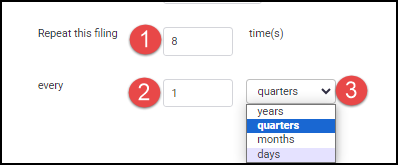
You can specify the number of times the filings in the Scenario can be repeated within the Strategy using the ‘Repeat this Filing’ option on the screen. Add a value for the number of times for repeating the filing pattern of the Scenario in the first box, add a certain number of days, months, quarters, or years in the second box and select Days/Months/Quarters/Year from the drop-down list. For example, if you want the filing pattern repeated 8 times every quarter, then you should enter 8 in the first box (1), 1 in the second box (2) and select Quarter from the drop-down list (3).
Cost Factor
There are three types of cost factors that can be associated with a Scenario filing pattern when used within a Strategy.
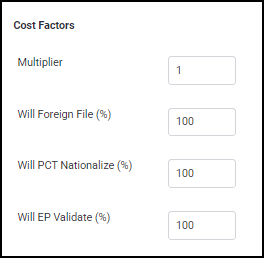
First, the Cost Multiplier ‘Multiply ‘x’ times’ is just a straight multiplier applied to every cost generated by the usage of the Scenario filing pattern within the Strategy. This feature has mostly been replaced by using the ‘Repeat this Filing’.
Second, the Realization Percentage factors for filings via various routes are the three cost factors that are expressed in percentages:
· The Foreign Filing Percentage.
· The PCT Nationalization Percentage.
· The EP Validation Percentage.
For patents filed directly to countries other than the initial country, the Foreign File percentage will be applied to the cost estimates attributable to those filings.
· Costs attributable to PCT Nationals will be multiplied by the Foreign File percentage and the PCT Nationalize percentage.
· Costs attributable to EPO validations will be multiplied by the Foreign File percentage and the EP Validation percentage.
· Costs attributable to EPO validations that are filed through the PCT will be multiplied by the Foreign File percentage, the PCT Nationalization percentage and the EP validation percentage.
Third, Cost Factor Percentages can be defined for specific countries in a Scenario, as described in the
Scenario Percentages section later in this documentation.
NOTE: As the Cost Factor Percentages defined in Scenarios and Strategies can be ‘mixed’ and thus can reduce the expectancy percentage too much, the Scenario Percentages Report (under User Settings) was developed to assist you in ensuring that expectancy percentages weren’t reduced too much, by setting this value in both the Scenario, and then again, in the Strategy calling that Scenario.
Click UPDATE to save the changes and go to the Edit Strategy Details screen.
Click BACK to go to the Edit Strategy Details screen without saving the changes.
EDIT SCENARIO FILING DETAILS
To edit scenario filing details of a newly added Strategy, select a scenario on the Edit Strategy Details screen and click on the Edit button (shown below).
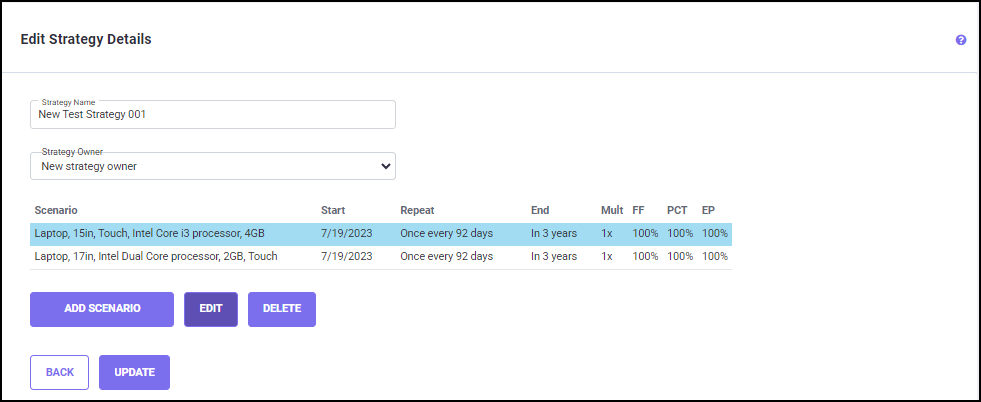
The Edit Scenario Filing details screen appears, where you can edit the values under each parameter (shown below).
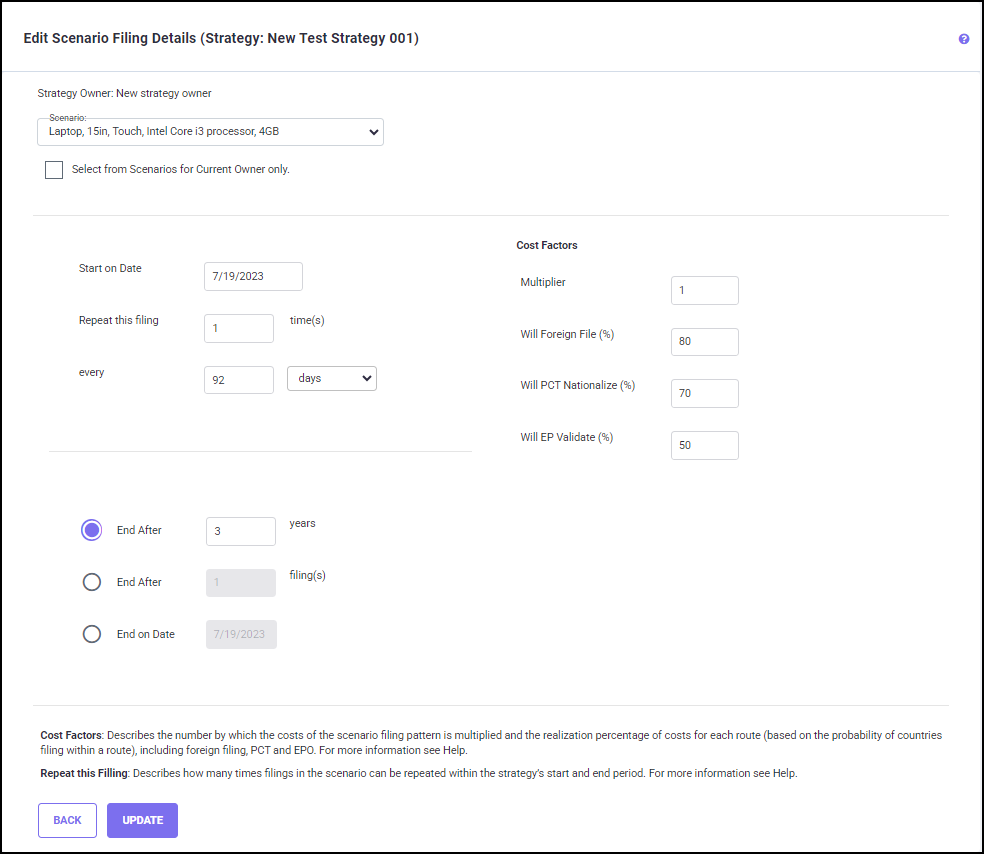
Once you have updated the changes for the selected Scenario. Click on the UPDATE button to save the changes and go to the Edit Strategy Details screen.
Click BACK to go to the Edit Strategy Details screen without saving the changes.
DELETE SCENARIO FILING DETAILS
To delete a scenario filing detail, select a Scenario in the Edit Strategy Details screen.
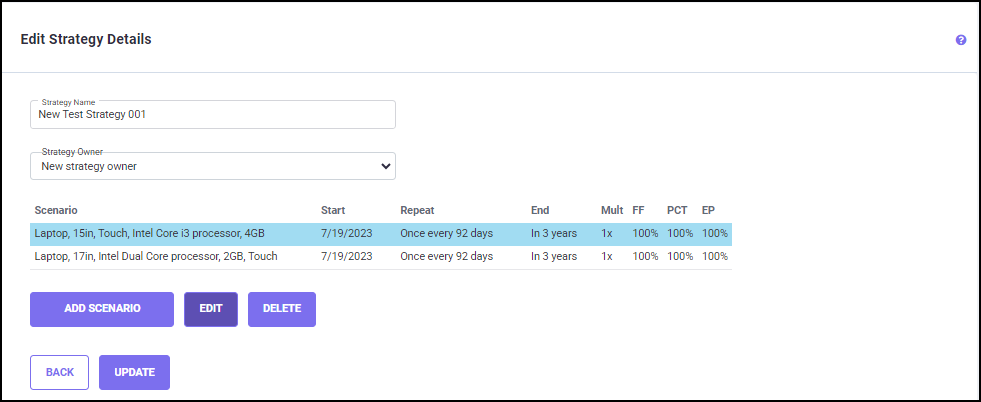
Clicking on the DELETE button leads the following pop-up screen to appear.

Confirm your selection by clicking YES. Once a scenario is deleted, it cannot be reverted.
EDIT STRATEGY DETAILS
Editing the multiple scenarios listed under a strategy and updating the changes edits the strategy details. Selecting a Strategy and clicking the three-dots icon on the Strategies screen shows the following options, where you can edit the scenarios in the Strategy.
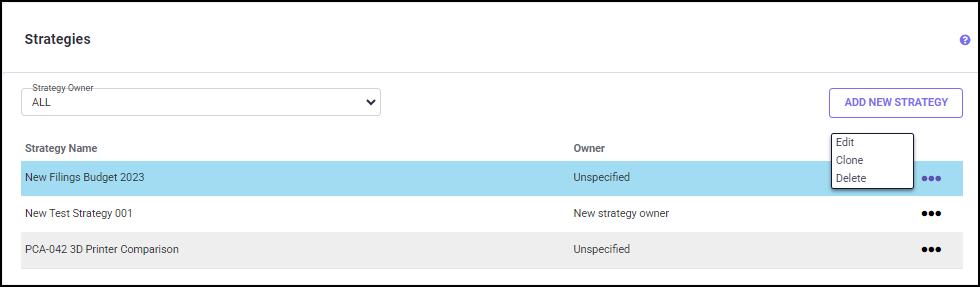
When you click the Edit option from the three-dots settings menu, the Edit Strategy Details screen appears.
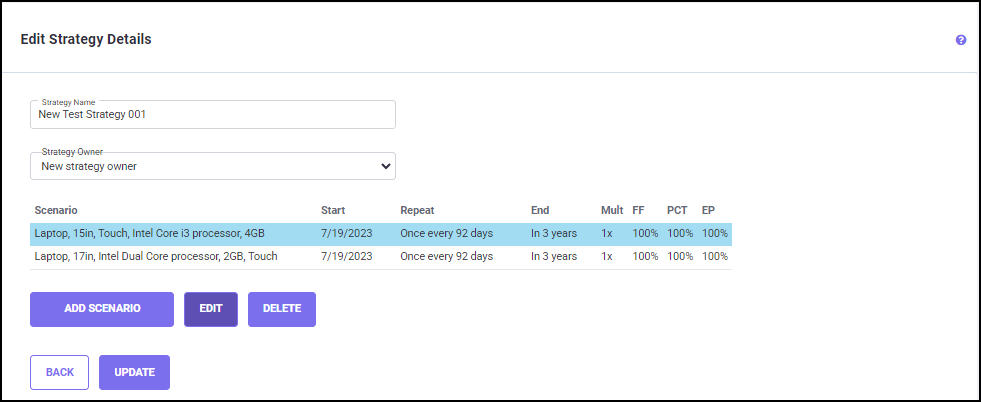
Once you have made changes on this screen, click on the UPDATE button in the Edit Strategy Details screen to save the changes made to the Strategy.
Click BACK to go to the Strategy screen without saving the changes.
CLONE A STRATEGY SPECIFICATION
Cloning a strategy specification creates a duplicate of that strategy specification with the same Scenario filing details and filing pattern data. The values of the scenario filing details are replicated.
To create a clone of a Strategy specification, select a strategy name on the Strategies screen and click on the CLONE button (shown below).
You will receive a notification when a new strategy is created (shown below).
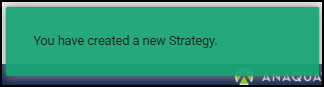
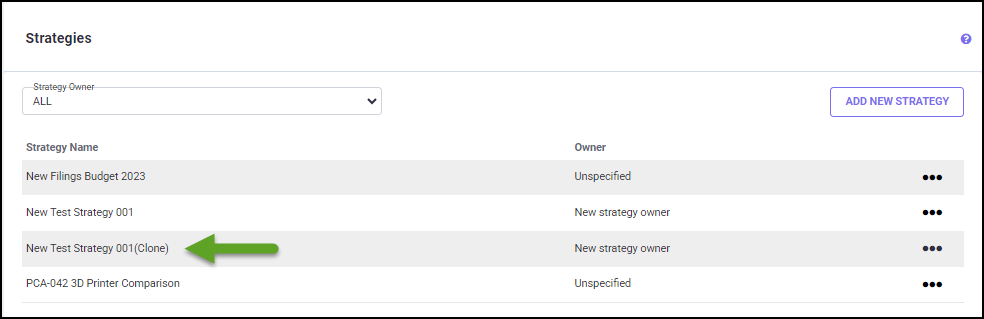
The cloned strategy specification copies the same name with the word “(clone)” within braces at the end.
DELETE A STRATEGY SPECIFICATION
Deleting a strategy specification also deletes the scenario filing details and its values associated with the strategy specification.
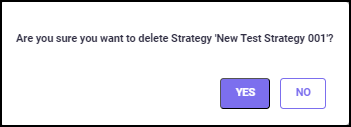
To delete a strategy, select a strategy specification on the Strategies screen and click on the three dots icon and choose Delete.
A warning message will pop up. Click on the Yes button to delete the Strategy specification.