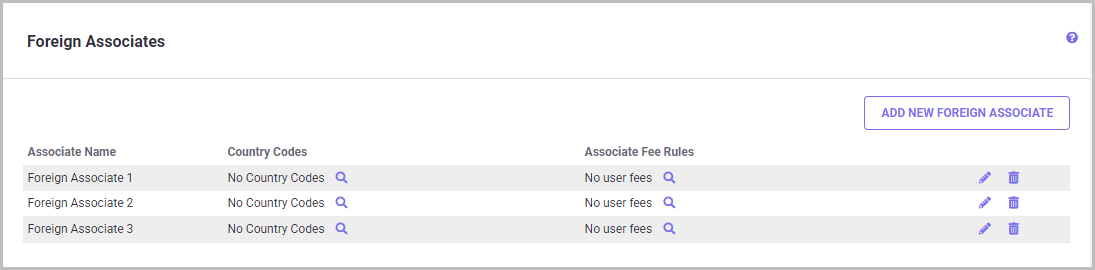
Adding a New Foreign Associate
To add a new foreign associate, click on the ADD NEW FOREIGN ASSOCIATE button. The following pop-up screen appears. Type the name of the new Foreign Associate in the 'Full Name' field and an abbreviated name in the 'Short Name' field.
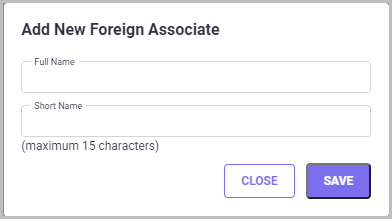
Click the ADD button to save the changes. Click CLOSE to exit the ‘Add New Foreign Associate’ pop-up screen.
Editing a Foreign Associate
To edit/update a foreign associate name, click on the edit

icon corresponding to the associate name you wish to edit. The
Update Foreign Associate pop-up screen appears.

Once you have updated the Foreign Associate name in the "Full Name" and "Short Name" fields, click on the UPDATE button to save the changes. Click CLOSE to exit the ‘Update Foreign Associate’ pop-up screen.
Deleting a Foreign Associate
By deleting a foreign associate, designations made for this associate both from the user fee rules for any countries, and also from the individual patent families are deleted.
To delete a foreign associate, click on the delete

icon corresponding to the foreign associate you want to delete. The following pop-up screen appears.

Confirm your selection by clicking OK on the pop-up screen and a Warning pop-up screen will appear.
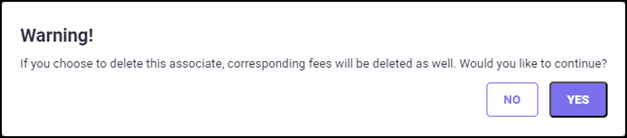
Confirm your selection by clicking YES on the pop-up screen. The selected foreign associate will be deleted from the list.
Adding/Editing Country Codes for Foreign associates
To add country codes for a foreign associate, follow the steps mentioned below:
Step 1: Click on the search

icon under the
Country Codes column for the foreign associate you wish to add countries. The
Edit Foreign Associate Countries pop-up screen appears.
Step 2: Select one or more countries from the list.
Step 3: Once you have selected the countries, click the UPDATE button to save the changes. Click CLOSE to return to the Foreign Associate screen.
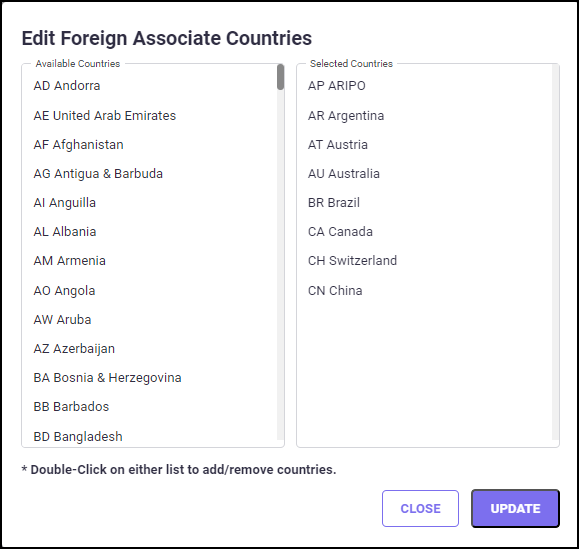
You can continue this process with each Foreign Associate by selecting it on the list and following the above steps. There is no limit to the number of foreign associates that can be assigned to a country. In addition, there is no limit to the number of countries a foreign associate can be assigned to.
Adding/Editing User Fees by Foreign associates
Before you add user fees, the foreign associate must have countries assigned. To add user fees for a Foreign Associate, follow the steps mentioned below:
Step 1: Click on the search
icon under the
Associate Fee Rules column for the foreign associate for which you wish to add user fees. The
Foreign Associate Fee Rules screen appears. The available Foreign Associates are those that have been previously defined on the
Foreign Associates screen.
Step 2: Select a country from the country list on the left.

Step 3: Now, specify associate charges in the spreadsheet grid of pre-defined fee 'rules'.
Step 4: Check the ‘Activate Fee Rules’ checkbox to enable the fee rule in the report.
Step 4: When finished, click the UPDATE button before selecting another country or another counsel.
Note: Only application types available for the country selected will be shown. Different charges may be specified per country and application type at each stage. Each user fee rule represents one line item that will be added to the Family Details Report. Any countries that have fee rules already defined for them will appear on the list in red.
Click the 'Use these Fee Rules Exclusively’ option to replace system default fees with these ‘user-defined’ fees. Click the 'Add To System Fee Rules' option to add these ‘user-defined’ fees to the system default fees. Either ‘Use these Fee Rules Exclusively’ or ‘Add To System Fee Rules’ option can be selected.

The ‘VAT%’ is the percentage of Value Added Tax, which is applicable for some countries. This checkbox is only available for countries that have VAT. You can enable the checkbox to add VAT% to the user associate fees entered on this screen for all applicable countries. This also allows you to exclude VAT by unchecking this option, when the amount you entered has it already included.
Annuities by Foreign Associates
Annuities are another type of user fee that can be defined for the Foreign Associate by country. Click on the ANNUITIES button on the Foreign Associate Fee Rules screen and the following screen (shown below) appears.
The associate selected on the Foreign Associate screen is displayed on this screen title.
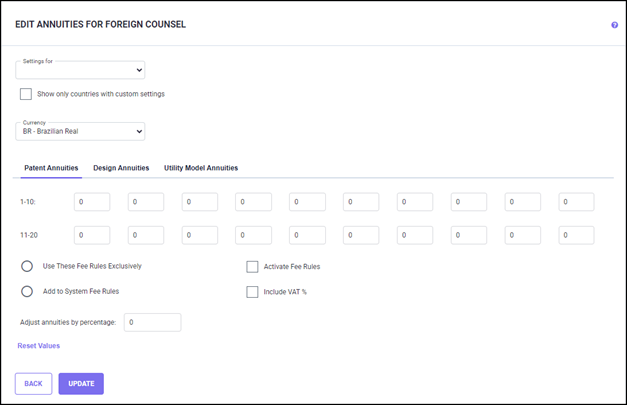
For more information concerning the options and settings on the Annuities screen, refer back to the Annuity service section.
When finished, check the "Activate Fee Rules" checkbox, and click the UPDATE button to save the changes.
Click the BACK button to exit the Edit Annuities screen.