Adding/Editing User Fees
To add user fees for a Simple Fee Rule, follow the steps mentioned below:
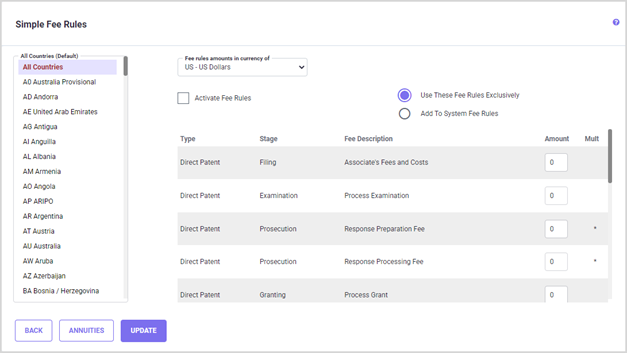
Step 1: Select a country from the country list on the left. You may also enter annuities for ‘All Countries’. The ‘All Countries’ values will be in effect unless overridden by any specific country values that are defined.
Step 2: Now, specify associate charges in the spreadsheet grid of pre-defined fee 'rules'. The Fee Rules Spreadsheet section is described in detail below.
Step 3: Check the ‘Activate Fee Rules’ checkbox to enable the fee rule in the report.
Step 4: When finished, click the UPDATE button before selecting another country or another counsel.
Note: Only application types available for the country selected will be shown. Different charges may be specified per country and application type at each stage. Each user fee rule represents one line item that will be added to the Family Details Report. Any countries that have fee rules already defined for them will appear on the list in red.
User Fee Options
Click the 'Use these Fee Rules Exclusively’ option to replace system default fees with these ‘user-defined’ fees. Click the 'Add To System Fee Rules' option to add these ‘user-defined’ fees to the system default fees. Either ‘Use these Fee Rules Exclusively’ or ‘Add To System Fee Rules’ options can be selected.

Annuities
To enter annuities, click on the ANNUITIES button. For more information concerning the options and settings on the Edit Annuities screen, refer to the Annuity Service section.
FEE RULE SPREADSHEET
The columns in the fee-rule spreadsheet grid are described in detail below:
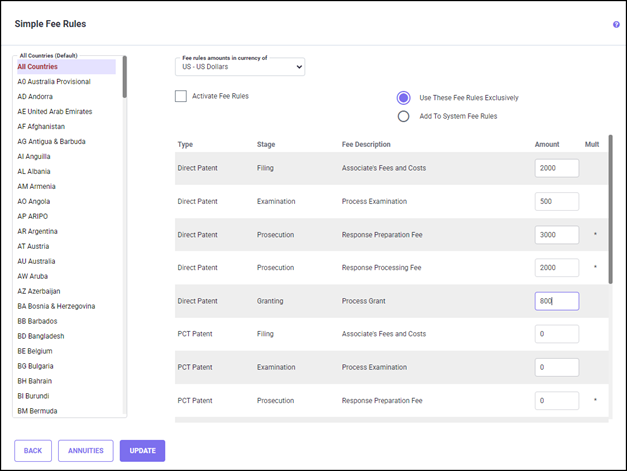
Type: The application type for which the fee rule will apply.
Stage: The stage that corresponds to the line item. If the rule results in a non-zero amount, the line will appear on the Detail Report in this stage. The stage indicated cannot be changed.
Fee Description: The fee description that will appear on the Family Details Report for this rule. This text cannot be modified.
Amount: The amount to be included in the estimate for the line item. Only rules which result in a non-zero amount will appear on the Family Details Report.
Mult: The Amount needs to be multiplied if an “*” is shown here. Value calculated by multiplying the amount specified here by the corresponding value specified in the Application Information section while running an estimate.
Note that the following Prosecution Cost entries are handled slightly differently than the others and have “*” in the ‘Mult’ column.
1. Response Preparation Fee – This amount is multiplied by the country's 'Number of Prosecution Actions’ entered in the Application Information screen.
2. Response Processing Fee – This amount is multiplied by the country's default ‘Number of Prosecution Actions’ or value defined for ‘Number of Prosecution Actions’ in the Prosecution Settings screen.
Calculation of Associate’s charges at the Prosecution Stage for China:
Let us now consider how the above Associate charges defined in the User Defined Fee Rules grid will be included in the estimate for Direct applications filed to China. 6% VAT is applicable to the Associate charges in China.
The system default value for ‘Number of Prosecution Action’ for China is 2.
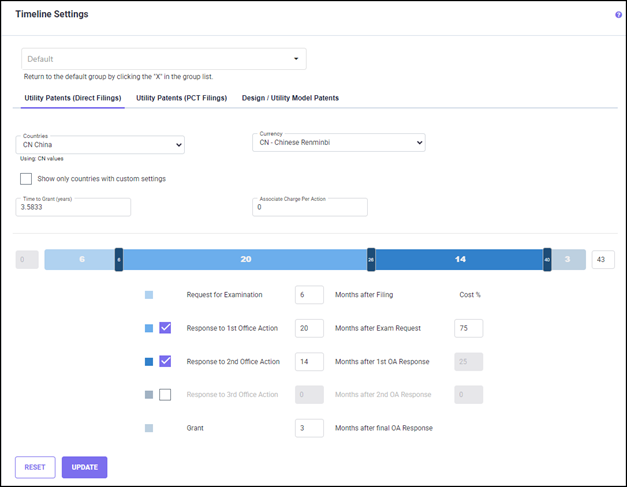
Therefore, the Associate’s charges added at the prosecution stages are calculated as given below:
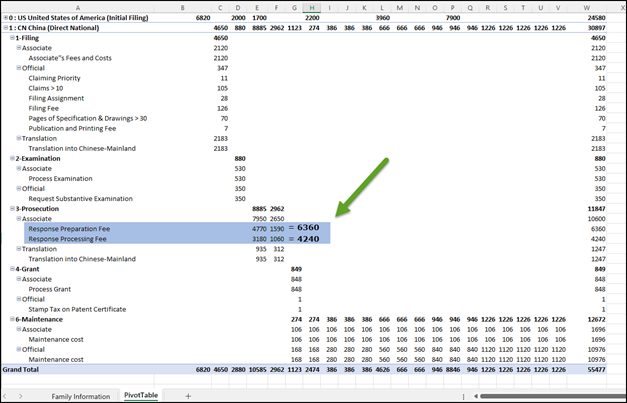
Amount for Associate’s charge ‘Response Preparation Fees’ at each prosecution stage=[(US$3000×2) + ((US$3000×2) × .06)] = (US$6360)
In this case, 1st office action cost % is 75, hence US$4770, and next office US$1590
Amount for Associate’s charge ‘Response Processing Fees’ at each prosecution stage=[ (US$2000×2) +((US$2000×2) × 0.06)]= (US$4240)
In this case, 1st office action cost % is 75, hence US$3180, and next office US$1060
This amount is split based on the number of response action and cost % per country in the Timeline settings.
The Family Detail report for Direct application filed to China including the above defined associate charges is shown below.
To delete a particular user-defined Associate Charges item in the User Defined Fee Rules grid, set the Amount to ‘0’.