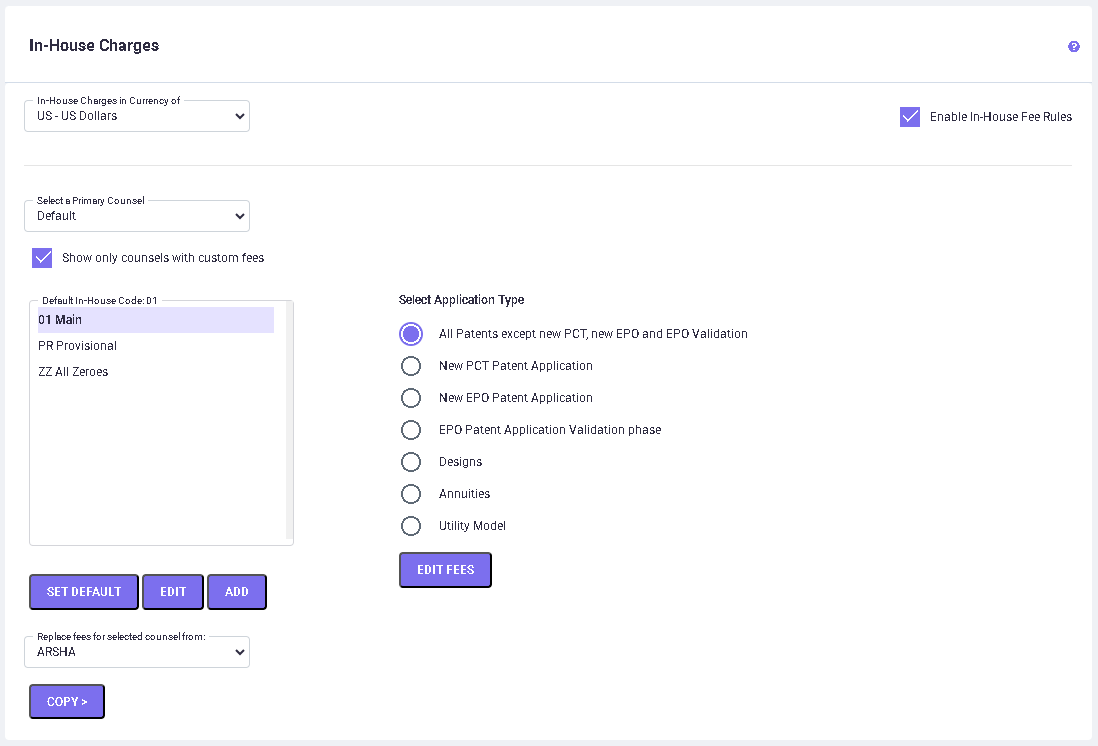
The In-House Charges setting gives you the ability to create, modify, and delete an In-House Code for a Primary Counsel and Application Type, as well as to change the preferred currency to be used to define the In-House Charges in a set. For example, you may use different currencies for different Counsel if you are filing the applications in foreign countries and would like to enter attorney fees in the local currency.
In order to activate the In-House charges, you must check off the ‘Enable In-House Fee Rules’ checkbox. By default, the ‘Enable In-House Fee Rules’ checkbox is checked. If you do not want to add In-House charges in your estimates, simply uncheck this checkbox.
In-House codes
In-House Charges are entered in “sets” known as In-House Codes. You can define different sets of In-House charges by Counsel for each application type. There are four system-defined In-House Codes:
1. ‘01 Main’ (for general In-House charges for most countries)
2. ‘PR Provisional’ (for In-House charges related to provisional applications)
3. ‘ZZ All Zeroes’ (for zeroing out all In-House charges)
4. ‘HC Home Country’ (for countries considered to be a Home Country, defined in the Home Country tab under Calculation Settings)
The information contained in the “ZZ All Zeroes” In-House code cannot be changed or deleted. The information contained in the other system-defined In-House codes can be changed, but these In-House codes cannot be deleted.
The In-House Charges option is used to define the ‘01’, ‘PR’ and ‘ZZ’ In-House codes that are added to the estimates of the foreign countries. Please refer to Calculation Settings >> In-House Fees to define the ‘HC’ In-House code for the Home Country.
Additional In-House codes can be added, modified and deleted. Each In-House code, except ‘ZZ All Zeroes,’ can have different values for each Application Type. These set(s) can then be assigned:
· By Default (for all countries)
· By Primary Counsel
The process of Managing In-House Charges will be described after discussing what an In-House set of charges contains for each type of application (e.g., 'All Patents except new PCT, new EPO & EPO Validation' vs. 'New PCT Patent application' vs. 'New EPO Patent application', etc.,).
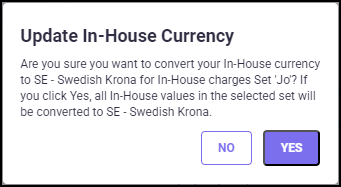
The currency of an In-House Charges set may be changed by first selecting an In-House Charges set (e.g., ‘01 Main’), then selecting a currency with the ‘In-House Charges In Currency Of’ drop-down arrow (e.g., ‘JP Japanese Yen’), and then answering YES to the confirmation message. Your amounts for the selected set will be converted to the new currency.
MANAGING IN-HOUSE SETS
There are several ways that In-House Charges can be managed. Users can create and manage user-defined In-House sets and assign values:
· To a 'Default' set (for all countries)
· To a specific Primary Counsel
· To a specific country(s)
· To a Group(s) specified on Calculation Setting screen.
Adding New In-House Code to a Primary Counsel
To add an In-House set to a primary counsel, follow the steps below:
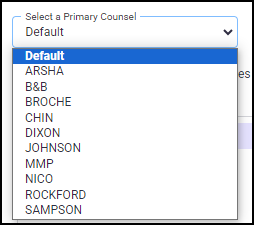
Step 1: Select a primary counsel from the "Select a Primary Counsel" drop-down list. When the "show only countries with custom settings" option is selected, the drop-down list shows only countries which have the user-defined values.
Step 2: Click on the ADD button to create a new In-House code for the selected counsel. The following pop-up screen appears.
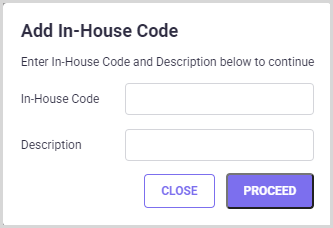
Step 3: Enter an In-House code (two characters, alphanumeric) and a brief description (50 characters) in the corresponding fields
Step 4: Click the PROCEED button to save the changes. Click CLOSE to exit the Add In-House Code pop-up screen.
A new In-House code will be added to the ‘In-House Codes’ list. The program will copy the default In-House charges set (01 Main) for the new In-House set created.
There is no limit to the number of In-House sets you create.
Editing an In-House Code
To edit an In-House Code for a primary counsel, follow the steps below:
Step 1: Select a primary counsel from the "Select a Primary Counsel" drop-down list and select the In-House set you want to edit by highlighting it.
Step 2: Update the In-House code and description fields.
Step 3: Click the PROCEED button to save the changes. Click CLOSE to exit the Add In-House Code pop-up screen.
Deleting an In-House Code
You may delete an obsolete In-House set using the DELETE button. You can delete all the user defined In-House sets for any counsel except the default set. The system default In-House sets ("01 Main", PR Provisional", and "ZZ All Zeroes") cannot be deleted for all counsels.
To delete an In-House set, follow the steps below:
Step 1: Select a primary counsel from the "Select a Primary Counsel" drop-down list and select the In-House set you want to delete by highlighting it.
Step 2: Click the DELETE button. The following pop-up screen appears.
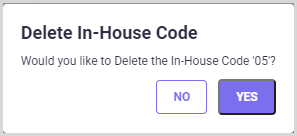
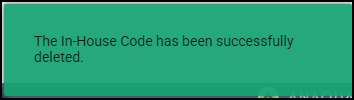
Step 3: Confirm your selection by clicking YES on the pop-up screen. You will receive a notification once the In-House set is deleted successfuly.
Changing the Default In-House Code
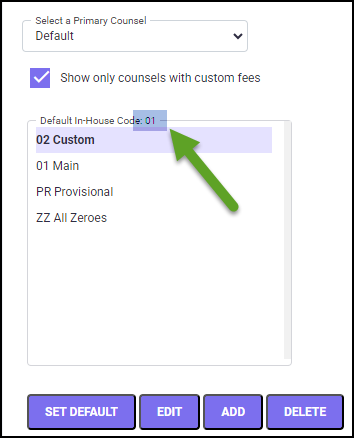
From the In-House Charges screen, you can choose any In-House Set to be the default In-House set for a selected Primary Counsel. The current default set for the selected Primary Counsel will be indicated at the top of the In-House codes selection box. (See the example below which shows 01 as the default In-House Code for the selected Primary Counsel.)
To delete an In-House set, follow the steps mentioned below:
Step 1: Select a primary counsel from the "Select a Primary Counsel" drop-down list and select the In-House set you want to edit by highlighting it.
Step 2: Click the SET DEFAULT button. The following pop-up screen appears.
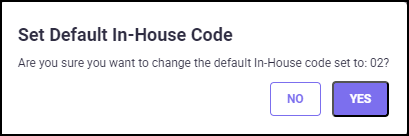
Step 3: Confirm your selection by clicking YES on the pop-up screen. You will receive a notification once the selected In-House set is assigned as the default set.
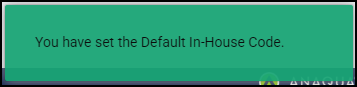
Step 3: Click the PROCEED button to save the changes. Click CLOSE to exit the Add In-House Code pop-up screen.
In addition, you can copy fees from one counsel to another using the ‘Replace fees for selected counsel from’ option. Follow the below steps:
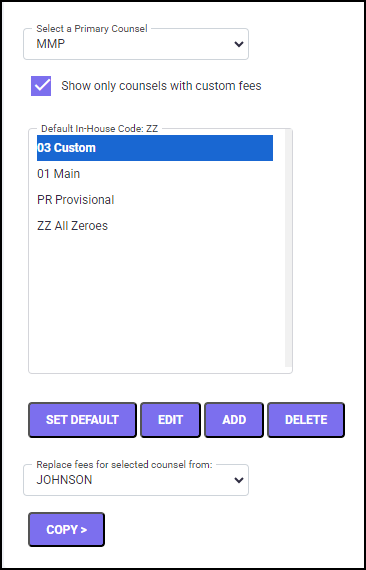
Step 1: Select the counsel from which the In-House fees need to be copied from the "Select a Primary Counsel" drop-down list.
Step 2: Select the counsel from which the In-House fees need to be copied to from the "Replace fees for selected counsel from:" drop-down list.
Step 3: Click the COPY> button, the following pop-up screen appears.
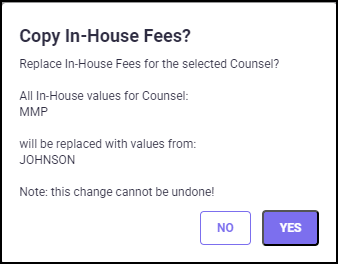
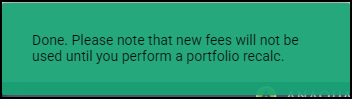
Step 4: Confirm your selection by clicking YES on the pop-up screen. You will receive a notification once the In-House fees are copied successfully.
MANAGING IN-HOUSE CHARGES
To assign a specific set of In-House Charges as the system default, make sure to select the ‘Default’ counsel from the ‘Primary Counsel’ drop-down list. Next, select the In-House code you wish to use, and click the SET DEFAULT button.
Choose a Primary Counsel, a specific In-House Charges set, and an Application Type. Now, click the PROCEED button. A screen is displayed showing the detailed charges for your selection. The screen is initially filled with default values. An example of an In-House Charges detail screen is shown below.
The amounts are grouped by Category and by Stage (Filing, Examination, Prosecution, and Granting). Amounts are entered in the currency selected on the previous screen. Only non-zero amounts will be included on the reports.
Click the UPDATE button to save the changes.
All Patents except new PCT, new EPO and EPO Validation
When you have selected the “All Patents except new PCT, new EPO, and EPO Validation” application type for an In-House set on the In-House Charges screen, the following screen appears showing the detailed charges.
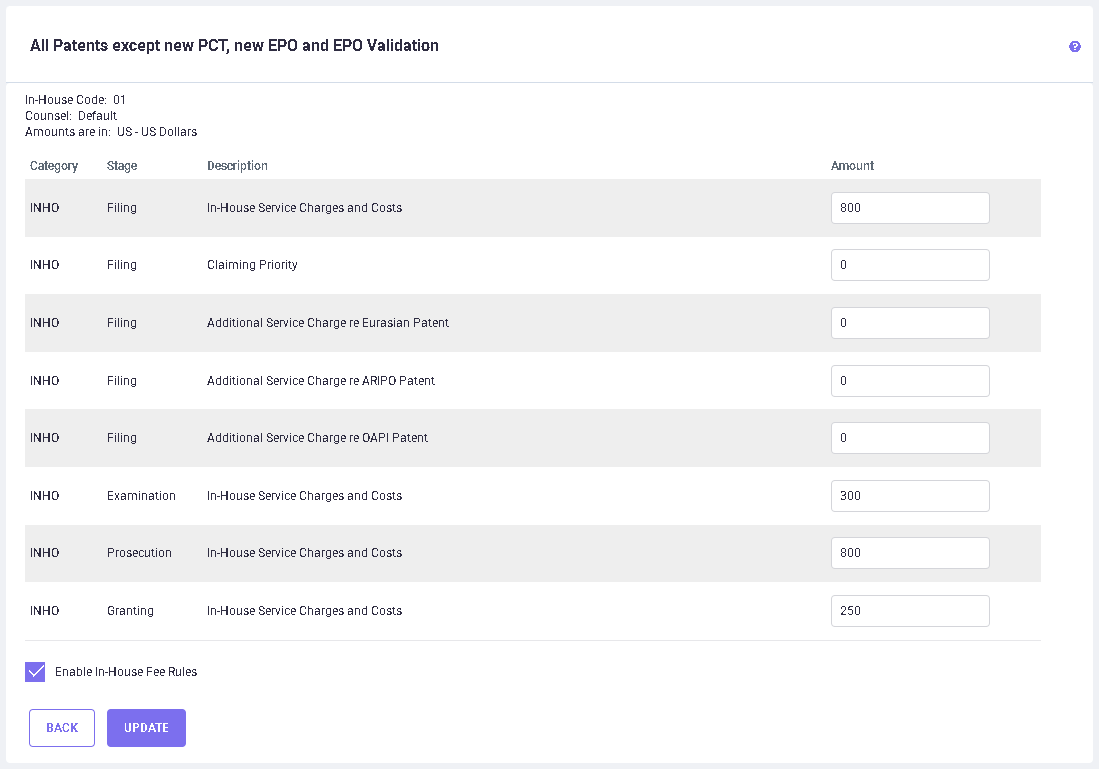
The In-House code, the currency and the Primary Counsel selected for the set appear on the top portion of the screen.
Amounts in this Application Type are included in estimates as In-House Service Charges for an application, which is made directly to a country, or a National Phase PCT Patent.
They are not included in estimates for a new PCT application, a new EPO application, or an EPO Validation Phase application.
You may now change charges, costs, and fees that will affect patent families under the selected Primary Counsel and of this Application Type. Any non-zero entry will appear in its respective stage in the In-House category in the estimate report for the foreign countries to which applications are filed directly or as PCT National Phase filings, depending on the Primary Counsel and In-House Code assigned in the family. The amount for In-House Service Charges and Costs for Prosecution is multiplied by the number of Office Actions for the country, and then split across the three Prosecution Actions.
Click the UPDATE button to save the changes. Click BACK to return to the In-House Charges screen.
New PCT Patent Application
The screen displayed for this option is shown below.
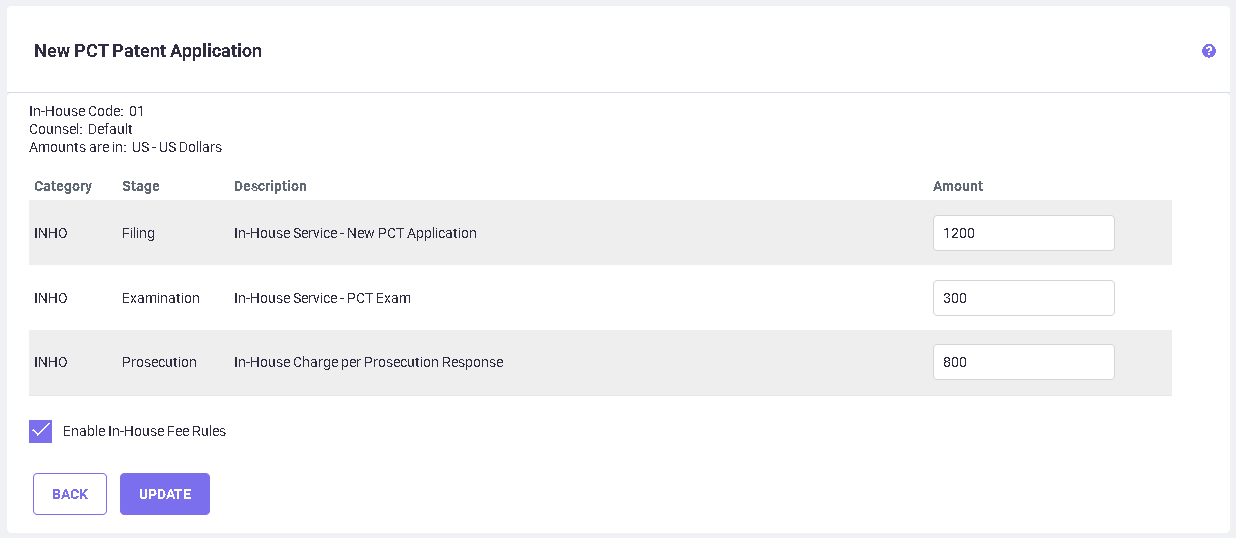
You may now change charges, costs, and fees that will affect patent families under the selected Primary Counsel and for a PCT (International) estimate only. Any non-zero entry will appear in its respective stage in category In-House.
The In-House Service - PCT Exam and In-House Charge per Prosecution Response amount is included in the respective stages only if the ‘PCT Chapter II filed’ option is selected in the family.
The amount for In-House Charge per Prosecution Response is multiplied by the number of Office Actions for the PCT, and then split across the three Prosecution Actions.
Click the UPDATE button to save the changes. Click BACK to return to the In-House Charges screen.
New EPO Patent Application
The screen displayed for this option is shown below.
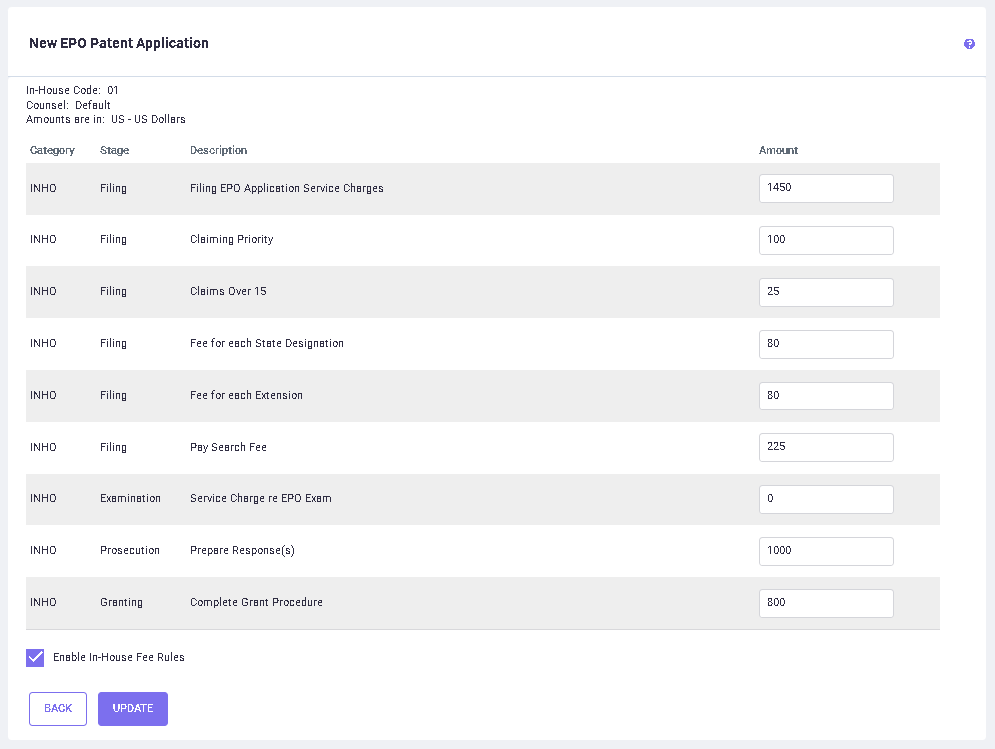
You may now change charges, costs, and fees that will affect patent families under the selected Primary Counsel and In-House Code for a new EPO (European Patent Office) estimate only. Any non-zero entry will appear in its respective stage in the In-House category for EPO applications that are filed as Direct or PCT National filings, as seen in the below figure.
Click the UPDATE button to save the changes. Click BACK to return to the In-House Charges screen.
EPO Patent Application Validation phase
The screen displayed for this option is shown below.
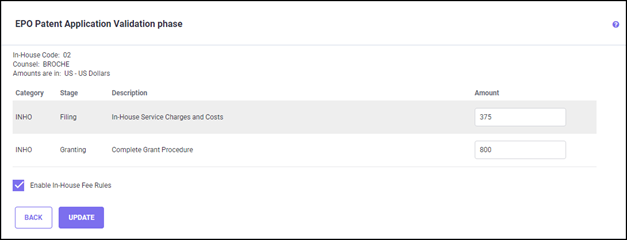
You may now change charges, costs, and fees that will affect patent families under the selected Primary Counsel and for estimates for the EPO Validation phase (which may also be called the ‘Regional phase’), after the EPO Grant. Any non-zero entry for the ‘In-House Service Charges and Costs’ will appear in the filing stage In-House category for the validation countries.
Click the UPDATE button to save the changes. Click BACK to return to the In-House Charges screen.
Designs
The screen displayed for this option is shown below.
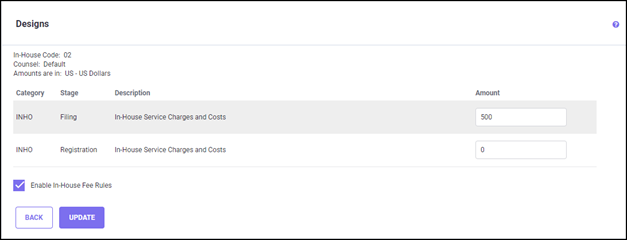
You may now change charges, costs, and fees that will affect Design families under the selected Primary Counsel. Any non-zero entry will appear in its respective stage in In-House category for the Design applications filed to the foreign countries.
Click the UPDATE button to save the changes. Click BACK to return to the In-House Charges screen.
In-House Annuity Charges
The screen displayed for this option is shown below.
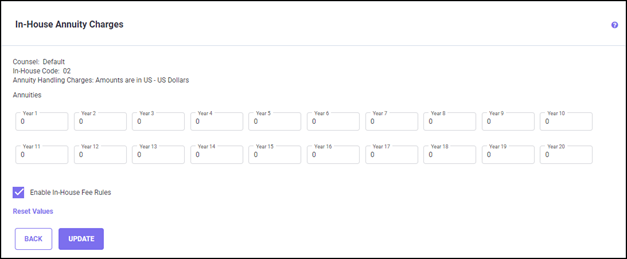
The first row of fields, labeled 1-10, is for the In-House charges for handling the first 10 annuity payments. Similarly, the row labeled 11-20 contains charges for payments 11 to 20.
You may change the amounts on this screen per the Primary Counsel and In-House Code, and these amounts are then included as In-House charges in the maintenance (also called annuity) stage of reports for the foreign countries filed through Direct or PCT routes, depending on the Primary Counsel and In-House Code selected in the family. Let’s say you have changed the Annuities for In-House Code ‘02’ for the Primary Counsel ‘Broche’, as seen in the following figure:
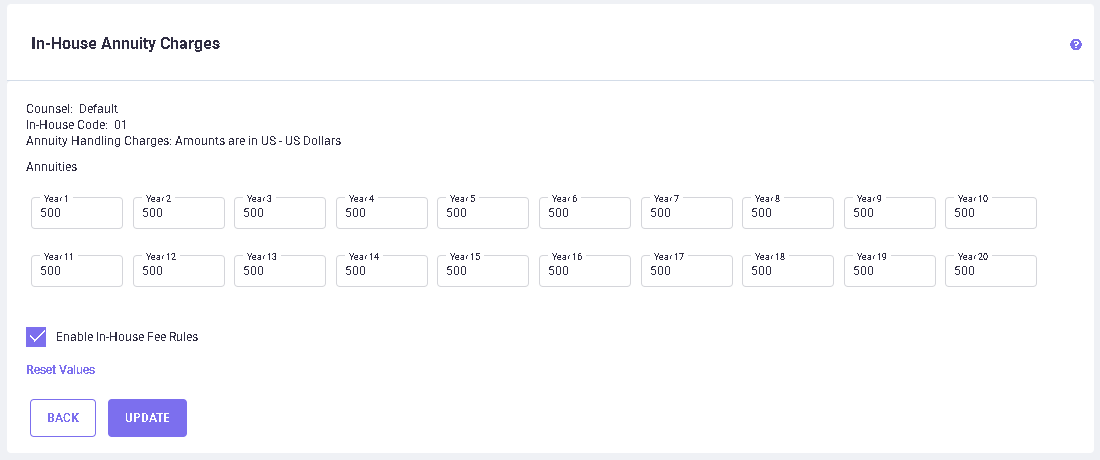
The estimate reports for all the Direct, PCT National, and EPO Validation applications will have these yearly annuity amounts added at the maintenance stage.
Family Details Report PCA-017-1 (showing In-House Annuity charges added in the Annuities table as per the Primary Counsel ‘Broche’ and In-House Code ‘02’ assigned)
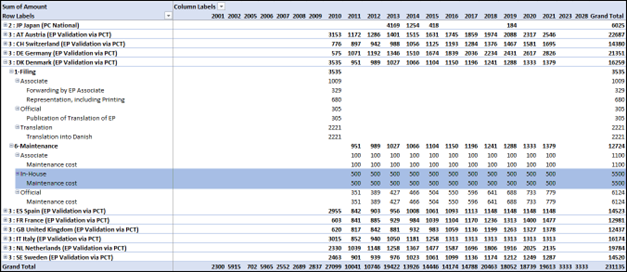
In-House charges for Annuities are added only to the years that have official fees, depending on the annuity rules applicable in each country. For example, for EPO validation countries, the first annuity is payable for the subsequent year in which EPO Patent is granted.
You may reset the values changed here to the Default values anytime by clicking the ‘Reset Values’ link.
Click the UPDATE button to save the changes. Click BACK to return to the In-House Charges screen.
Utility Model
The screen displayed for this option is shown below.
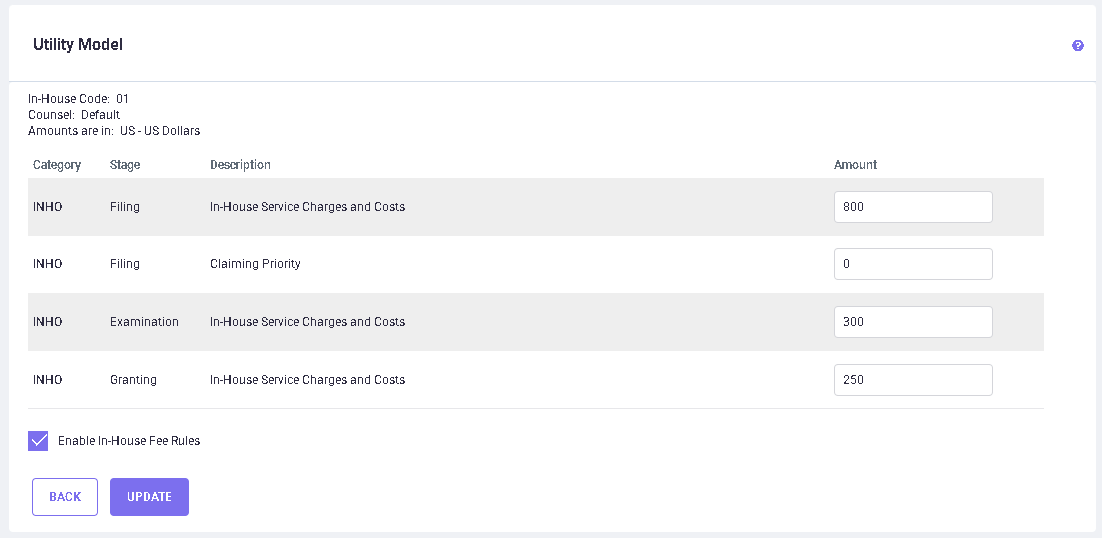
You may now change charges, costs, and fees that will affect Utility Model families under the selected Primary Counsel. Any non-zero entry will appear in its respective stage in the In-House category for Utility Model applications filed to the foreign countries where Utility Model applications are available.
Click the UPDATE button to save the changes. Click BACK to return to the In-House Charges screen.