To include projected filings in your Portfolio/Scenario data, first determine the countries or jurisdictions in each filing route (Priority, Direct, PCT, and/or EPO).
Set up steps for defining Projected Filings:
1. Select the priority filing countries from the "Priority Countries" list box. double click-ing on the country name to move them into selected list.
This is a list of existing priorities in your portfolio that you want to spawn secondary filings from. These can be considered as an “OR” list of countries. For example, if you select US-Prov, US-NP (US Non-Provisional), PCT, and EP as your list of Priorities, all families in your portfolio that have any of these as the first filing, depending on the filing dates and current phase of the family, will be considered ‘eligible’ to receive the secondary routes that follow (see ‘Projected Filings ‘Smart’ Functionality’ for more in-formation). Also, the system is ‘smart’ enough to know if a family began as a US-NP, it will not be repeated in following routes, such as a Direct one year later in that family. Conversely, if it began as a US-Prov, that same setup will trigger the US-NP at the one-year Direct stage; the same principle applies to the PCT Priority vs. Direct.
2. To enter the filing countries for each of the secondary routes (i.e., the one year Na-tional Directs (Direct), 30-month PCT National Phase (PCT), and the EP Validation countries (EPO)), select the countries from the respective routes by double clicking the countries from the available countries list box. The "Select All" option allows you to select all the countries from the available countries list box.
Unlike the Priority route, these can be considered as “AND” lists, whereas every coun-try added to these lists will be added to all ‘eligible’ families, depending on the status of that family (see ‘Projected Filings ‘Smart’ Functionality’ for more information).
You can only identify one route for a specific country in a single filing pattern. For in-stance, say your filing strategies include the US-NPs as initial filings, Direct filings to the USPTO, and as a PCT National Phase filing. Although you can identify the US-NP as a Priority (see Priority route notes), you only follow it up with one of the two possible secondary routes; that is, it can only be set up as a Direct national OR under the PCT National Phase. If you need to have them both, you will need to create Groups to ac-commodate these variations (see Projected Filings by Group for more information).
US-NP can be under the Direct or PCT route but not both.
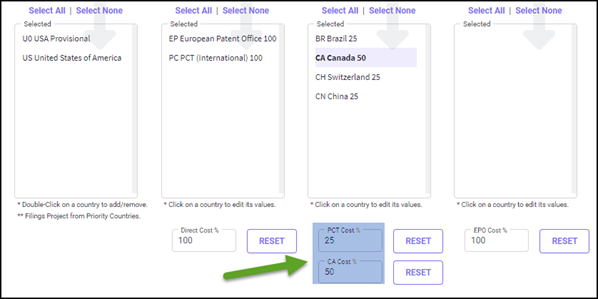
3. Next you can define default Cost Percentages based on the likelihood of occurrence for each route and/or for country within a route. There is a full section dedicated to this functionality (see Cost Percentages); however, from a high level, these are used to curve back costs when the expectation of occurrence is less than 100% of the time.
For example, say your defined priorities have identified 10 ‘eligible families’ to receive CA filings under the PCT; but in reality, only 5 of them will actually nationalize in the CA. By curving the cost factor to 50% on the CA filing, while all 10 CA’s will project, but only at 50% of costs, reflecting a more realistic total on your reports. These are aggre-gated, so if 25% was applied to the PCT, the CA’s 50% would result in 50% of 25%.
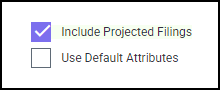
4. Turn onthis feature by checking the 'Include Projected Filings' checkbox.
5. Click the UPDATE button to save your selections. You may need to perform a full re-calculation of the portfolio upon return to the Portfolio Data screen; this process is required for your defined projected filings to be included and/or disabled in your portfolio.
Projected Filings ‘Smart’ Functionality
As mentioned, the Projected Filings feature includes some ‘smart’ functionality insomuch as it understands and adheres to legal filing timelines and is sensitive to the current phase (route) of the incomplete families it attempts to fulfill. With this, certain rules exist in order for families to be considered ‘eligible’ to receive projected filings. Basically, an eligible family must:
1. Begin with one of the countries identified in the Priority list.
If the Priority is a US Prov, the Filing date must be less than 1 year to project any further.
2. A route will only project if the family does not contain any supplied filings in that route.
For instance, if you’ve identified a US-NP and a PCT under the Direct route, but your docketed filings consist of a US-NP (only) at the one year mark for that family, we’d assume you’ve satisfied your filing decisions for that route, and subsequently the PCT (and all of its dependent projections) will cease to project any further.
Likewise, if you’ve identified a long list of filings under the PCT, but the docketed fil-ings include at least one PCT National filing, the system will cease to project any of the other countries on the list to that family.
3. If a parent filing (e.g., PCT or EP) is included in the setup, but there are no docketed dependent filings in that route, then the projected countries will be added per the setup.
4. The ‘Allow Projections’ option must be checked in the Edit Basic Details screen. This is set as the default, so you would have to intentionally go in and turn this off to disa-ble a family.
5. Legal timeline requirements are considered and applied for each route. For instance, like the US-PROV must be under one year, all of the National Direct filings must be satisfied with real docketed filings within 1 year from the Priority, as does the PCT Na-tional Phase within 30/31 months from Priority. EP Validations are excluded from this rule as they have no set timelines and will project under any valid EP, starting upon the Grant Date (estimated or actual).
Example 1: In the projected filing pattern, the priority filter has only US-NP, CA, and PCT In-ternational defined, and US-Prov is not included.

Since US Provisional is not defined in the Priority filter in the above projected filing pattern, the projected filings are not added in the family PCA-054-1, filed initially to US Provisional.

Example 2: If the projected filing pattern has the countries CN, IN, USA Non-Provisional, and USA Provisional defined in the Priority filter, then projections are added to the families that have CN, IN, US Non-Provisional or US Provisional filed as the Priority:

In this example, the family PCA-033-1 has the projected filings included, since the family has USA Provisional as the Priority Country and PCT International as the Direct filing. The project-ed filings defined under the PCT Nationals and EP Validations routes are added to the family (appearing in blue color in below figure).

However, the projected filings are not added to the family PCA-047-1, even though the initial filing in the family is a USA Provisional (defined as one of the Priority Countries in Projected Filing pattern in because the initial filing date in the family is older than 12 months (deadline for Direct filings under Paris Convention).

COST PERCENTAGE
Use the ‘Default Cost %’ option to further define these projected filings based on the per-centage, or likelihood, of completion. Specify what percentage of the projected filings costs to use to accurately represent your filing pattern. By default, 100% of projected costs will be used.
You may define a different cost percentage for Direct, PCT, and EPO routes by entering a dif-ferent value in each ‘Default Cost %’ field corresponding to each route. The cost percentages of all countries under the route will then be changed based on the percentage entered. You may then further define a different percentage for individual countries within the route.
For example, changing the default PCT cost percentage to 90% suggests that 9 out of 10 times that you file to the PCT, you will continue with these PCT National filings. If you only file to China half of the time that you file to the PCT, you can click on China and set the cost per-centage to 50%.

Example 3: In this filing pattern, 5 cases are docketed at the US-Prov stage, and your setup determined that you were going to the PCT, then nationalizing in CN, BR, EP, and US with EP validations to DE, FR, and GB. PE will create all the projected filings for all five eligible cases. However, you know that only 10% of those would actually go to BR, while only 50% will go to the EP. The Projected Filings feature would still include BR and the EP (as well as all the oth-ers) on all five cases, but it would limit the cost factor for BR to 10% and the EP to 50%. This is an aggregated percentage because if you further limited GB under the EP to 50%, GB would be 50% of the 50% to the EP. This may sound complicated, but it’s very simple to set up:

PROJECTED FILINGS BY GROUP
You can assign specific projections by different groups like Technology, Invention Ranking, Division, Manager, etc., and analyze the costs for the projected countries by these groups. Using groups with Projected Filings allows you to isolate specific patent families and define projections according to the requirements of each group.
To select groups for Projected Filings, you must select a group category under Group Assign-ments for Projected filings in the Group Definitions screen. When a Group Category is select-ed for a projected filings area, the drop-down list here will show respective groups for the selected group category. Say you have selected the group category "Division" for Projected filings in the Group Definitions screen, then, the groups for division will be shown in the drop-down list in the Projected Filings screen.

Any group not selected here will project filings using the 'Default' filing pattern in the families with those groups assigned.
Once you've selected which groups to use, you can set up a filing pattern for each group by selecting the group from the drop-down list. Define the projections by following the set up steps under Setup steps for defining Projected Filings.
Using "Copy from Group"
You can quickly set up multiple filing patterns by group using the ‘Copy from Group’ option.
To use the "Copy from Group" option, follow the below steps:
Step 1: Select a group from which the In-House fees need to be copied from the "Copy from Group" drop-down list.
Step 2: Select a group from which the In-House fees need to be copied to from the "Groups" drop-down list.
Step 3: Click the COPY button, you will receive a notification once the In-House fees are copied successfully.

Step 4: Click the UPDATE button to save the changes before moving to the next group.
If you would like to try different patterns of projected filings on the same patent families, the ‘Allow group reassignment’ feature allows you to assign different groups (with different pro-jected filing patterns) to a set of families for comparison. The set-up and usage steps are de-scribed in the Group reassignment section.
Example 4: For this example, we will show how the same set of families can use different pro-jected filing patterns for comparison purposes, using the “Group Reassignment” feature. Suppose that you want to compare two similar but conflicting filing strategies. In one, you wish to file directly to the US, CA, JP, and CN, and in the other, you want to file to the US, CA, JP, and CN via the PCT to compare the difference in fees and timelines. Additionally, you want to try this filing pattern on the same set of specific families with US-PROV as the Priority filing.
We can achieve this by using groups. Begin by selecting the specific families on which you would like to project filings. They may already be categorized into a group, or you may choose to assign a new group to the families in question (see Assigned Groups). To allow dif-ferent groups to be easily reassigned to these families, select “Allow Group Reassignment” on the group category to be used (see Allow group reassignment for details).

Add the group category to the program area Projected Filings from the Group Definitions screen. Add the groups "US via PCT" and "US Direct" in the Group Definitions screen.
Select the groups to be used from the drop-down list, then choose one of the groups. This example uses the group ‘US via PCT’ for the first group. The filing pattern is ‘U0 USA Provi-sional’ for the Priority (Pri); PCT for Direct; and US, CA, JP, and CN under PCT.

Now we will create a projected filing pattern for the second group to be used for comparison. The group ‘US Direct’ is selected as the second group in this example. The filing pattern will be ‘U0 USA Provisional’ for the Priority (Pri), and US, CA, JP, and CN for Direct. (A portfolio recalculation from PE’s home page is required for the changes to take effect.)

For this example, all the families in question are already assigned to the group ‘US via PCT’.
Now we can run a Portfolio Analysis report on the group ‘US via PCT’ to see the impact of the projected filings. Locate the group category in use (‘Division’ in this example) and select the group to which the families are currently assigned (‘US via PCT’).
The resulting report will show the projected filings (in green) by family, country, stage, and category, broken out by year.
To see the same report with the countries filed directly, we will first change the group as-signment on the families to ‘US Direct’. Using the Portfolio Advanced Search, we will identify the families currently assigned to the ‘US via PCT’ group.

Highlight the families in the search results by checking the checkbox and click the ‘Group Re-assignment’ option.

In the ‘Group Reassignment’ screen, select the respective group and group member (‘US Di-rect’ in this case).
Check the "I Understand" checkbox and click the REASSIGN button to initiate the group reas-signment.
Once the group is reassigned, you can run the Portfolio Analysis report, selecting the group ‘US Direct” under the Advanced Search Options’.

Using this method, you have the flexibility to project different filing patterns on the same families, allowing you to compare fees and timelines for different strategies.
PROJECTED FILINGS AND SCENARIOS
The Strategy Planner module in the program provides cost estimates for a wide variety of future patent filing patterns, defined by “Scenarios” (a patent filing pattern) and “Strategies” (a pattern of one or more Scenarios filed at various times in the future and repeated on a regular basis).
Use projected filings with Scenario data to project your filing patterns in the same way it is used with Portfolio Data. If the Scenario filing pattern matches that of your Projected Filing pattern, Scenario filings will project the other appropriate filings (see Projected Filings ‘Smart’ Functionality for details).
Example 7: In Examples 5 and 6, we applied projected filings to existing portfolio data. In this example, we’ll apply projected filings to a Scenario, which is a hypothetical filing used for analysis. For this example, we’ll set up the Projected Filing filer using US-NP for Priority; PCT for Direct; CA, CN, IN, and EP via PCT; and DE, FR, GB, and IT via EPO.
Next, go to the Scenarios screen and create a new Patent Scenario. The US will be the Initial country. Once a patent scenario is created, view the family dates screen to view the projected countries.

You can run the Scenario Details Report to see the results with the projected filings included.
REPORTING
You may be unsure how to start using Projected Filings to enhance your portfolio. A good starting place is to examine your current filing patterns to determine which countries and jurisdictions you file to, and which routes you use.
The Group Country Route Report presents your current filing patterns for analysis. You can select 1 – 2 group categories and refine the date range when running the report.

The group name is indicated in column A. Columns B and C show the percentage and count of Initial filings for each country or jurisdiction in this group. Column D, ‘Initial Filing’, lists the country or jurisdiction being reported. Column E is the percentage of time the country or jurisdiction appears in that route, compared to all the filings in the group. Column F shows the count of the times the country or jurisdiction appears in all the routes for this group.
Using the example above, the US (non-provisional) was the Initial Filing country for one route (‘This route’, Column D), or 15.8%, in this group. When looking at all the routes in this group (‘All routes’, Column F), the US is a filing country in 34 filings. The percentage of those filings that are initial filings is 8.8% (the number in ‘All routes’ divided by the number in ‘This route’).
Scenario Percentages Report
Use the ‘Projected Filings Percentages’ tab of the Scenario Percentages Report to see your Projected Filing countries and jurisdictions with the Cost Percentage of each by group and by route (Priority, Direct, PCT, and EPO). This format allows you to see all of your Projected Filing patterns at a glance.