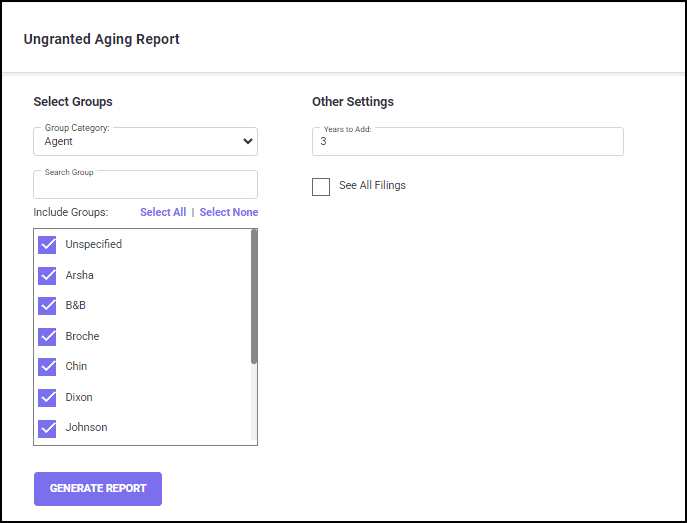
To run the Ungranted Aging Report follow the below steps:
1. Select a ‘Group Category’ from the drop-down list. The groups are displayed for the selected group category.
2. Select the groups from the "Include Groups" field by enabling the checkbox next to the group. You can choose specific group(s) under a category by selecting the groups that you want to be included in the report.
3. Enter a numerical value in the ‘Years to add’ box as per your requirement or use the default value of "3" years.
4. Select the option ‘See all filings’ if required.
Once you have set all the filters, click on the GENERATE REPORTS button to initiate calculations.
You will be directed to the Download Reports screen, where the generated Ungranted Aging Filing report is ready for download.
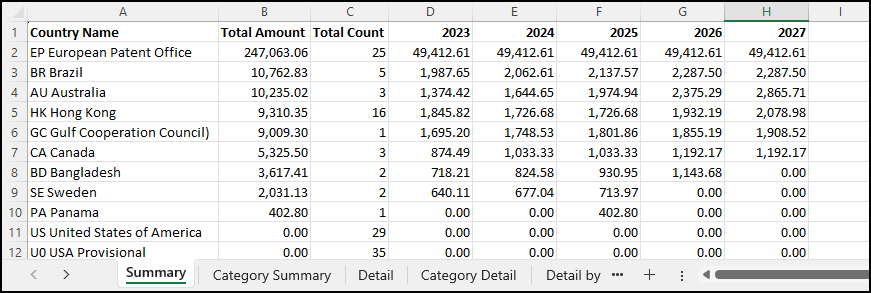
The report contains the summary and details of ungranted filings by country. The amounts are the maintenance costs, and the counts are the number of Family IDs that are being reported on for the country.
The report provides a summary of upcoming costs by Country and Family ID for the ungranted filings, and the maintenance costs projected to be due in the next five years are displayed in detail, starting from the present year. If you have selected the option ‘See only filings with costs,’ the report shows only the ungranted filings in countries where pre-grant maintenance is payable since they have maintenance costs due before grant of the patent. If you have selected ‘See all filings,’ the report shows the ungranted filings in all countries, including the countries with maintenance payable only after grant, wherein the maintenance cost included in the report is zero.
The Detail report for each country includes information on the Family ID, Family Title, Filing Date, and Group to which these filings belong.
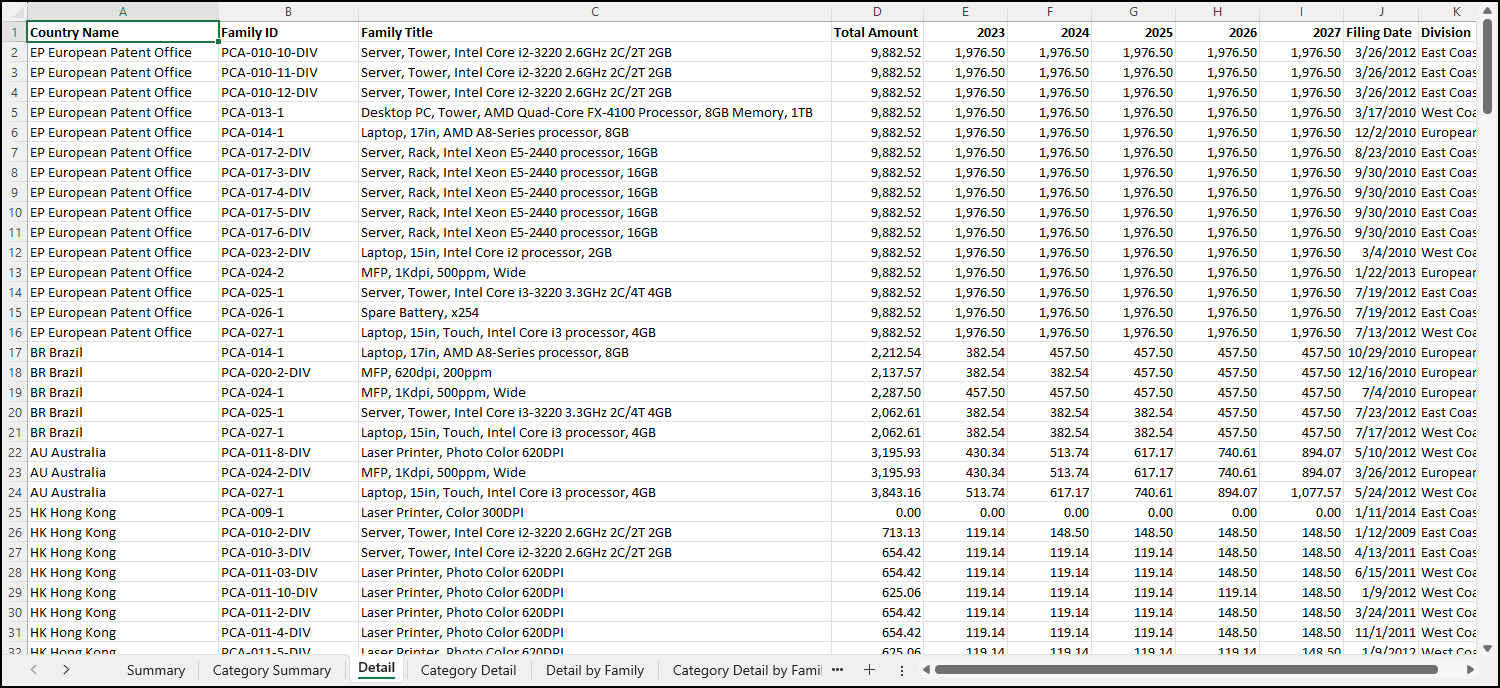
The Excel report contains the following spreadsheets:
o Summary – Shows the yearly maintenance costs per country, along with totals for all countries, sorted by the Total Amount.
o Category Summary – Expanded Summary report with Official, Associate, and In-House breakdowns, sorted by combined Total.
o Detail – Per Family ID for all countries, including columns with information on the Country, Family ID, Family Title, Filing Date, and the Groups under the Category selected. Detail reports are sorted by the Family ID as well as Country Total.
o Category Detail - Expanded Detail report with Official, Associate, and In-House breakdowns. Category Detail reports are sorted by the Family ID as well as Country Total.
o Detail by Family – Detail report sorted by Country Filing Date.
o Category Detail by Family – Category Detail report sorted by Country Filing Date.