User Fee Options
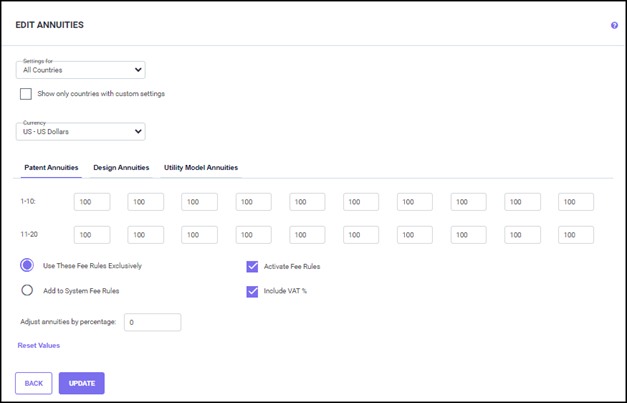
After entering the annuities, review the options listed below the annuities (as shown in the figure).
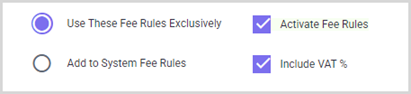
Click the 'Activate Fee Rules' checkbox to activate the set of fees. When the 'Activate Fee Rules' box is unchecked, the program ignores all annuity values on this section of the screen. You do not need to delete the values if you wish to switch between the 'user-defined' versus the system default fees. If you wish to revert to the system default fees, simply uncheck the ‘Activate Fee Rules’ box.
Either ‘Use these Fee Rules Exclusively’ or ‘Add To System Fee Rules’ option can be selected. Click the 'Use these Fee Rules Exclusively’ option to replace system default fees with these ‘user-defined’ fees. Click the 'Add To System Fee Rules' to add these ‘user-defined’ fees to the system default fees.
‘Include VAT%’ is the percentage of Value Added Tax, which is applicable for some countries. This checkbox is only available for countries that have VAT. You can enable the checkbox to add VAT% to the user associate fees entered on this screen for all applicable countries. This also allows you to exclude VAT by unchecking this option, when the amount you entered already includes it.
At a later point if there are any changes in the annuity charges for a country/all countries, you can use the ‘Adjust annuities by percentage’ box on the Edit Annuities screen to adjust the values earlier defined in annuity fields instead of changing each specific field.
To remove annuities previously specified for a country (or all countries) and revert them to the system default value (denoted by zero ‘0’), check the ‘Reset Values’ checkbox.
When finished, click the UPDATE button to save the changes. Click the BACK button to exit the Edit Annuities screen.