Our innovative Portfolio Estimator software accurately analyzes and predicts the global IP costs of your entire intellectual property portfolio. The software allows you to confidently achieve accurate and immediate cost estimates for the life of your portfolio. Analysis can be performed across your entire patent portfolio, or a selected set of patent families. There are also various reporting options to help in your budgeting process and illuminate where you can save costs.
Each patent family in your portfolio may contain patent applications and granted patents in any number of countries and can include applications filed via PCT and EPO routes.
For each country in each patent family, costs are projected for each stage based on exact at-tributes of the patent (e.g., number of claims). These costs include official fees, foreign asso-ciate charges, and maintenance costs (annuities).
In addition to costs projected for each patent family, for each country, and for each stage, the dates for when each stage may occur can also be projected.
For a given range of dates, the analysis provides costs totaled by year, by quarter, or by month. Portfolio and group level costs are broken down by stage (e.g., filing, examination, prosecution, etc.) and by category (e.g., government fees and estimated and/or customized associate charges). Portfolio and group counts are given by stage for the filings and grants. You can also review your worldwide strategies.
INITIAL CUSTOMIZATION
The User Settings tab allows you to access and modify data (especially user-defined settings) used to calculate cost estimates for the analysis reports. Periodically and most especially, prior to initial use, it is highly recommended that the main user spends some time browsing the default settings listed in the Settings tab to ensure they reflect your individual business practices. For more information on the items below, see the Settings tab.
Default Application Information
Portfolio Estimator provides default values for application information (e.g., pages of draw-ings, number of claims, etc.) that you can modify per your requirements. These values affect the cost estimates for applications filed in various countries. To review or modify the default values, click on the Settings tab at the top of your screen and then click on Default Applica-tion Information on the left side menu. The software will use these defaults when new pa-tents are added to the portfolio, whether by adding a family manually or through an auto-mated import process. The software defaults are based on a set of average values.
Fiscal Year
You may wish to have your reports match your fiscal year. To do this, click on the Settings tab at the top of your screen and then click on Fiscal Year Settings on the left side menu. Then click the checkbox labeled ‘Use Fiscal Year Settings’ and enter the fiscal year start date.
Primary Counsel
When handling initial filings through more than one country, you may wish to define the primary counsel for your patent applications. To do this, click on the Settings tab at the top of your screen and then click on the Calculation Settings | In-House Fees tab and select the Primary counsel. You can also define the rest of the settings by selecting the following tabs from the calculation settings screen: EPO Settings, PCT Offices, Translation Settings, Home Country, and Calculations currency.
Home Country and Currency
One or more countries may be selected as Home Country for each Primary Counsel. The es-timates for these countries will include official fees and annuities only (i.e., no associate charges or translation costs). The software does not estimate translation costs for any coun-try using the same language as a Home Country. Click Calculation Settings | Home Country tab and then select the appropriate Home countries. Calculation currency can be selected from the Calculation Settings | Calculation Currency tab.
EPO Settings
Verify default settings for the EPO ‘File Patents to EPO directly’ for the Primary Counsel you selected. Click the Calculation Settings | EPO Settings tab.
PCT Settings
Click Calculation Settings | PCT Offices tab to verify/edit your PCT offices for the Calculation settings Group you selected.
Translation Settings
Translation costs can be modified in many ways, from changing the default number of words per page to reusing translations done for one country in another country. Translation costs can also be adjusted for individual languages. A user may want to ensure the estimates run for a specific country have no translation costs. Countries set as home countries are auto-matically adjusted by the software to have no translation costs. You can also set translation costs for other languages to zero.
By default, all initial filings are assumed to be in English, requiring full translation performed by outside counsel for countries where English is not accepted. Therefore, if you have agents under contract and/or internal offices in other countries handling your translations, our de-fault estimates may be a little high. The default amount of words per page is 300 You may also consider reuse of translations (, e.g., once translated into Spanish, all Spanish speaking countries will not need to be re-translated again). Continuations will be translated at 10% of original size, while Divisionals will not be translated. As with all of our settings, defaults can be overridden. To edit translation settings for the primary counsel you selected, click the Translation Settings tab on the Calculation Settings screen.
Fee Adjustments
Click the Settings | Fee Adjustments menu item to set adjustment factors for the Group Cat-egory you selected by Country or by All Countries. Set adjustment amounts by percentage for official fees, associate’s charges, primary counsel fees, and translation costs.
Counsel Settings
Click Settings | Primary Counsels to assign counsel names to be used as In-House Filing Counsel(s). The counsel names defined here are used when assigning Pre-Filing Costs, In-House Charges, and Counsel Fee Rules defaults.
In the Portfolio Estimator, you have the ability to set up charges for Primary Counsel fees, whether cases are being handled by internal personnel or by outside counsel, as well as the Foreign Associate fees for each individual country. By default, all Foreign Associate fees are included in the estimates without requiring further setup. However, the default setup does not include ‘Home Country’ Counsel fees and needs to be turned on separately (see Primary Counsel Fee Rules for more details) to be reflected in the cost.
Within the Portfolio Estimator, the ‘In-House’ fees enable you to designate cost associated with the internal and/or external primary Counsel overseeing the entire case, while the term ‘Associate’ defines the Foreign Counsel dealing with only their country portion.
By default, the country you defined during the registration process becomes your “Home Country”. Although there are built-in default costs you can use, your Home Country will not automatically estimate Primary Counsel or handling fees and needs to be turned on sepa-rately (see Primary Counsel Fee Rules for more details). When you enter the In-House section for your Home Country under Calculation Settings, you will see we have defined a set of de-fault charges for each stage. You can simply use these charges or override them with your own and then check off the “Enable In-House Fee Rules” to turn them on. NOTE: Annuity fees set here are for the Home Country only and are for handling (not Official fees paid to the country). There is a separate setup for assigning the Service fee for foreign filings (shown in the Settings | In-House Charges screen below).
In addition to Home Country “In-House” or Primary Counsel fees, you can also turn on, and assign values to the Primary Counsel (In-house) fees that accompany foreign filings as well using the Settings | In-House Charges menu item. These fees represent your Primary Coun-sel’s portion that are in addition to the country’s Associate fees. Other considerations may include a mixture of internal/external, by stage, etc. and how you want those values to show in your reports.
In addition to the Primary Counsel (In-House) fees, there is a default set of Associate fees in the Portfolio Estimator, which will automatically be added as the Associate fees in the esti-mate for all other countries (not Home Country). In general, after surveying each country, our system defaults represent the high-end results for each country by stage, type, etc. You have a great deal of flexibility with these settings under the Settings | Associate Charges, where you can choose to accept system estimated defaults or assign specific values by country, stage, type, and/or counsel. NOTE: The number ‘0’ means system =default costs are being used. If you wish to indicate there are no costs, enter ‘.001’. This applies only to Associate fees; Official fees are always present. These can be a flat rate (no other associate fees) or a surcharge added to our estimated fees.
Exchange Rates
You can update the exchange rates by clicking Settings | Currency & Exchange Rates | GET LATEST RATES button.
Grant Date Settings
To make advanced adjustments to grant date calculations for older filings when importing new data, click Edit | Grant Date Settings. Using the values defined in the Grant Date Table, the grant dates of the older ungranted filings can be pushed into the future to avoid skewing the costs in the main budget years due to these older filings. For further details, see Grant Date Settings.
Groups
To set up groups, click Settings | Group Definition. In an analysis, data can then be grouped accordingly (e.g., by Division, by Technology, and/or by IP Manager). Groups can also be used to drive the following areas: Default Application Information, Projected Filings, Pre-filing Charges, Calculation Settings, Fee Adjustments, Prosecution and Timeline Settings.
Group Categories can be assigned to an area and then have specific values assigned by the Groups under the Group Category for that area. The process of assigning a Group Category to a user settings area and assigning specific values by Groups is shown below.
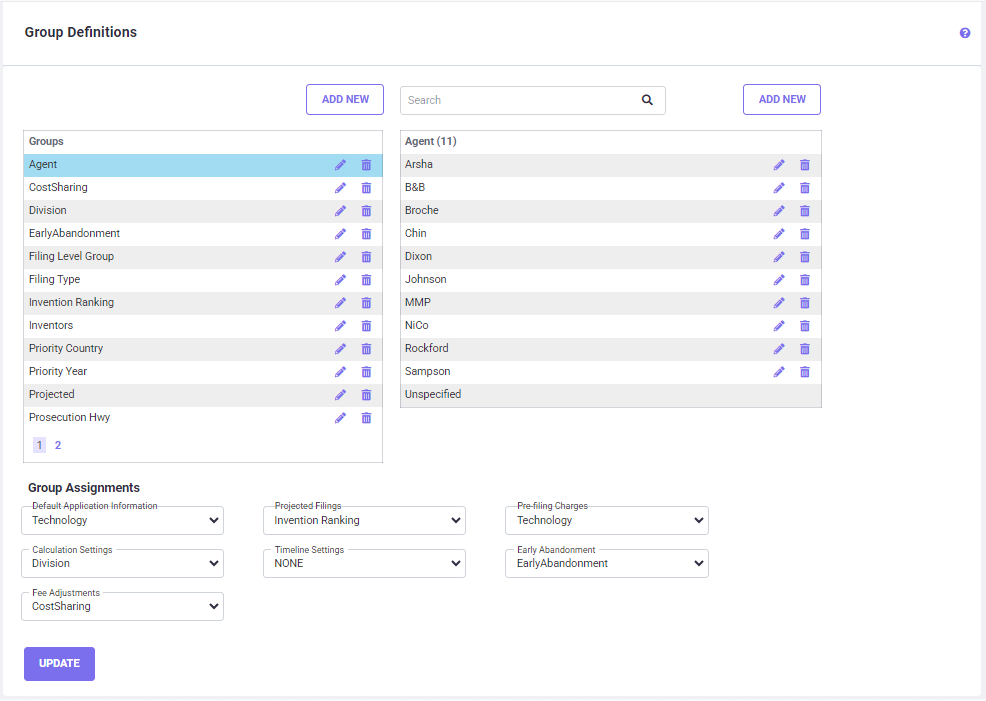
The assignment of the Group Category to a user Settings area is done in Group Definitions screen under Group Assignment.
Here the Group Category ’Technology’ has been selected for the area ‘Default Application Information’. This choice would help you define specific values for the Groups under the ‘Technology’ Group Category, instead of using the system default values for Application Information Defaults in the software. Please refer to the Group Definition section for more details.
Projected Filings
In order to get a comprehensive view of your future portfolio, you may need to fill in some ‘not-yet-docketed’ data; the Portfolio Estimator offers two powerful features to accomplish this. The first is called Projected Filings. ‘Projected filings’ are future filings that are likely to occur (i.e., ‘projected’) based on current filings.
This feature enables you to setup filing patterns that complete the nation-al/international/validation phases of the families that have started, but where the docketing data is incomplete. This is a very flexible feature, allowing you the ability to setup a single default filing pattern and/or vary them by Group. For example, assume you have docketed only the US Provisional. From this Provisional US application, the software can calculate the rest of your direct nationals like the PCT and all the expected Nationals after that, including EP and its corresponding Validations, to include them in your upcoming estimates, within the appropriate timelines.
In addition, you can setup “Expectancy %s” for each country. For instance, assume you have 5 cases docketed at the US Provisional stage only, and your setup determined you were going to the PCT and then nationalizing in CN, BR, EP and US, with Validations to DE, FR and GB. Portfolio Estimator would create all these filings for all 5 eligible cases; but assume only 10% of those would actually go to BR while only 50% will go to the EP. The Projected Filings fea-ture would still include the BR and EP (as well as all the others) on all 5 cases, but it would limit the cost factor for BR to 10% and the EP to 50%. The percentages included for each country are then an aggregated %, like, if you further limited GB under the EP to say 50%, GB would be 50% of the 50% to the EP. This may sound complicated but it’s very simple to setup and can help with Abandon rates. Also, there’s a powerful copy function that makes setting up multiple structures, such as Tier 1, Tier 2, Tier 3 concept a breeze. See the Projected Fil-ings section for more details.
To set up projected filings (by Group), click on the Projected Filings menu item from the user Settings side bar.
Timeline Settings
Click the Timeline Settings to modify the defaults for the number of ‘Years to Exam’ and ‘Years to Grant’ for patents filed directly or through PCT, and also the number of ‘Design Years to Issue’, etc.
By default, the Portfolio Estimator uses average timeline rules for each country, by stage and filing type, to build the estimates. To view the Timeline defaults, open the Timeline Settings under the Settings tab, select a country on the left, and hover over the boxes on the right. These Timeline Defaults are used to allocate calculated costs to particular years in the reports for various stages over the life of a patent. As in all places throughout the PE, you have a great deal of flexibility here; this cost distribution can be changed using the % buckets under the Prosecution Settings, and/or the start time can be adjusted using the “Prosecution Starts x years from Filing” found under the Timeline Settings. You also have the ability to override the system estimated number of office actions, fees per country/all countries, in-crease/decrease a multiplier (an overall adjustment), and further define these values by Groups (e.g., by ‘Technology’ if one technology typically takes longer than another).
Prosecution Settings
Click the Prosecution Settings menu item to modify the default number of prosecution ac-tions, the default number of translation pages per action, and the default associate charge per action. These can also be set as fixed fees by Group and by Country.
In-House Charges
The In-House Charges are the fees and internal costs that are included in the foreign filing estimates as part of the charges incurred in the processing of foreign applications (i.e., the fees and costs of sending the information to foreign associates and handling responses). Click Settings | In-House Charges to create and manage user-defined sets of In-House charges by Primary Counsel and by Application Type, and to set the default currency (for all sets except ‘HC’ Home Country which is defined on the Calculation Settings | In-House Charges). See the section on In-House Charges for more details.
Pre-filing Costs
Click Settings | Pre-filing Charges to set drafting fees by counsel and/or by group. This is a onetime fee that’s applied along with the 1st filing of the main or primary family. By default, there is no drafting fee, and this must be setup separately. You can set a default value for all filings, and/or override the default value by the fee defined by Counsel and/or Group if de-sired.
Strategies and Scenarios
Strategies and Scenarios are powerful Portfolio Estimator tools that allow you to build com-plete filing structures (Scenarios) and spread them out over a given period of time (Strate-gies). These options complement our PE and Projected Filings; whereas the PE includes every-thing already docketed and the Projected Filings builds in expected filings based on existing filings, Scenarios and Strategies enable you to further include all of your brand new inven-tions to gain a much broader comprehensive view of your upcoming costs. You can even link your Scenarios back to your Projected Filing patterns, making consistent data entry a breeze. Also, because of their independent nature, the Scenarios and Strategies tools become very useful in creating what-if scenarios, such as in acquisition planning, etc. Any of the customi-zations you setup can be passed through to these scenarios as well.
To define scenario owners for use in the Strategy Planner, click
Settings | Scenario Owners. Additional information regarding the capabilities and functions of the online version of
Global IP Estimator - Portfolio can be accessed by accessing the Portfolio Estimator Online Help system from the web by clicking the Help icon

located in the upper right corner of most pages, or by accessing this User's Guide either through the Help page or by clicking the Help menu item on the menu bar of all Global IP Estimator Portfolio Online pages.
ANALYZING YOUR PORTFOLIOS – BASIC STEPS
This chapter offers a brief overview of the basic steps of using the Portfolio Estimator. For more detail, see the sub-chapters.
Initial Screen
The initial screen will be displayed when you login to the Portfolio Estimator – Online web-site, as shown below.
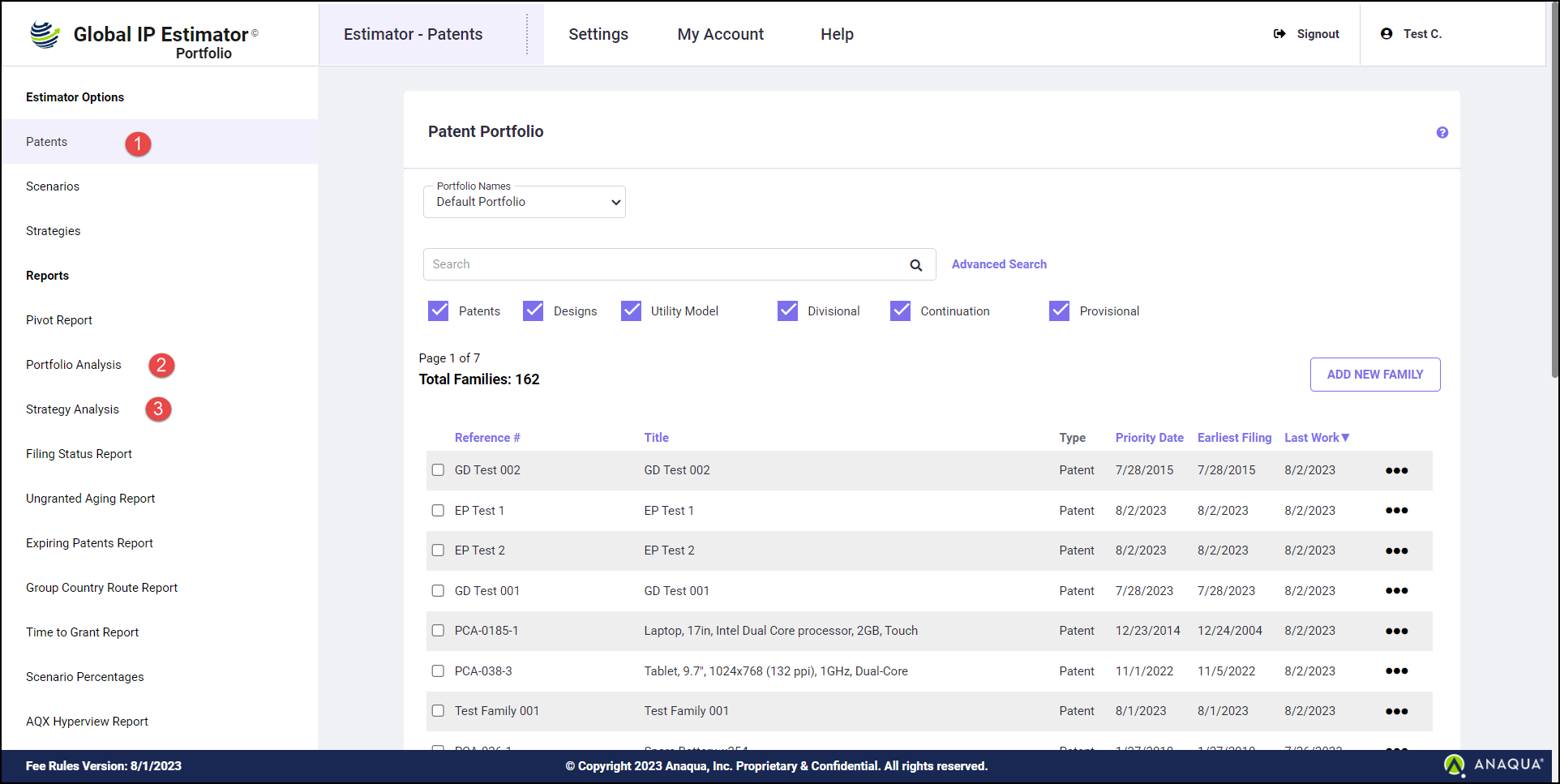
Click one of the three main menu items on the left side bar to perform the following tasks:
Patents (1): view, edit, and/or print details of filings in your portfolio.
Portfolio Analysis (2): create portfolio cost analysis reports for your portfolio data.
Strategy Analysis (3): create and run what-if scenarios to strategize using various combina-tions of future filing patterns.
Other options relate to user customizations. These are found in the menus at the top of the screen.
A message on the lower left side of the screen identifies the number of filings in the current portfolio database and the number of filings in the Strategy Planner (if any). Can you show an example of what that looks like? The version you are working with is shown on the lower left hand side of your screen.
Importing Data
The Portfolio Estimator allows you to import your patent portfolio data from other data-base(s), such as your docketing system, where you may have already entered the infor-mation. Editing, calculating, and analyzing the portfolio can then be performed on the im-ported batch. Navigate to Estimator - Patents | Import Portfolio Data and the Upload and Import Portfolio Data screen (as shown below) appears.
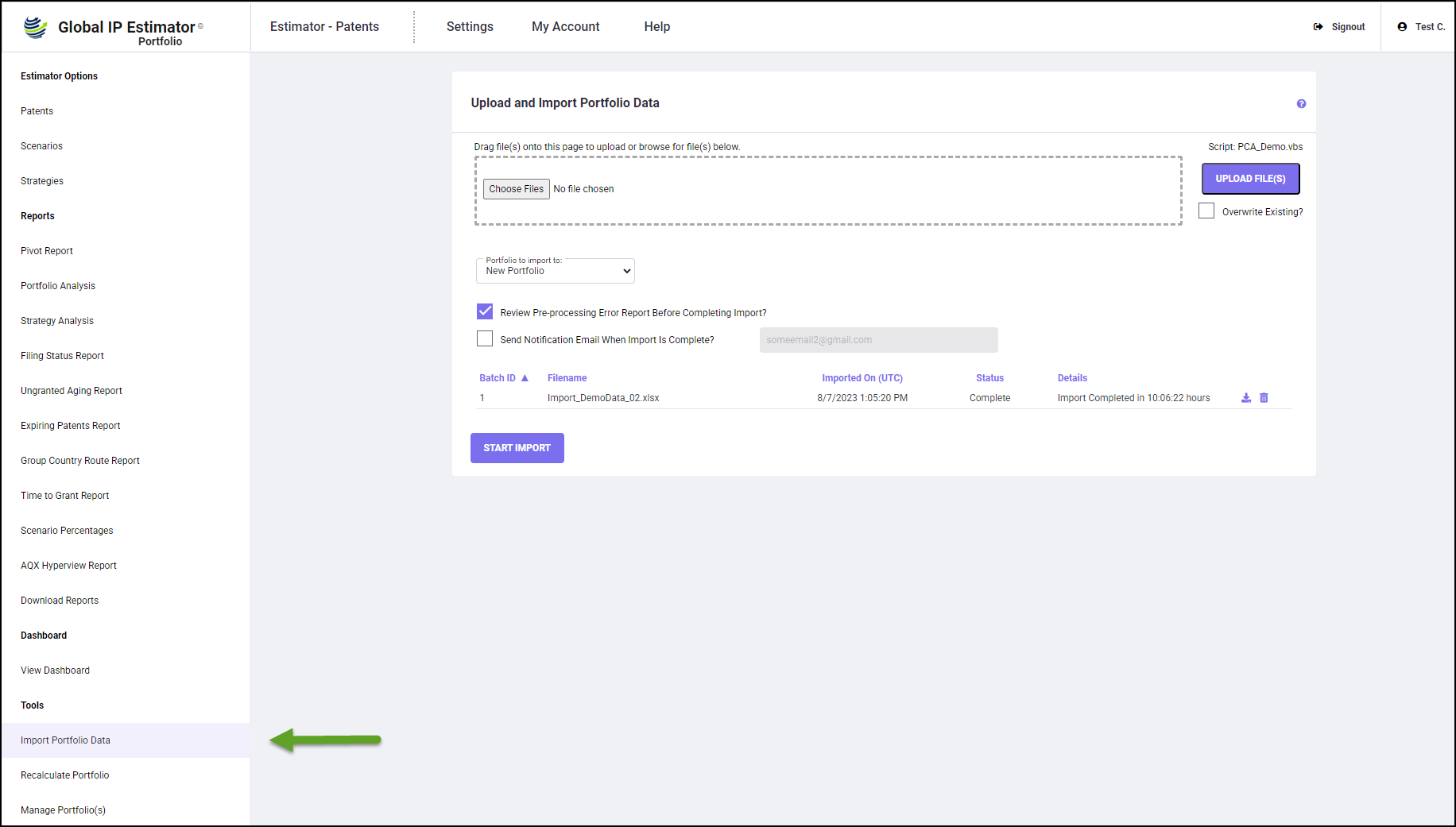
Importing data is discussed in more detail in Import Portfolio Data.
Portfolio Data
Choosing the link to work with Portfolio Data allows you to add a new patent family (a set of patents filed in various countries to protect a single invention), edit/view details, calculate costs, run reports, and/or delete a patent family.
Adding (and Editing) Data Manually for a New Patent Family
There are several screens involved in the process of adding a new patent family and editing patent data manually. The software then proceeds to display screens to allow you to edit the details, recalculate costs, and view the family details report.
Editing Data for an Existing Patent Family
The software helps you to identify one patent family to work with (from the entire portfolio) by first providing selection and search options. After selecting one of the patent families, click on the three-dot setting menu of the selected family and the following menu appears. Almost all of the options for working with one patent family start from this screen.
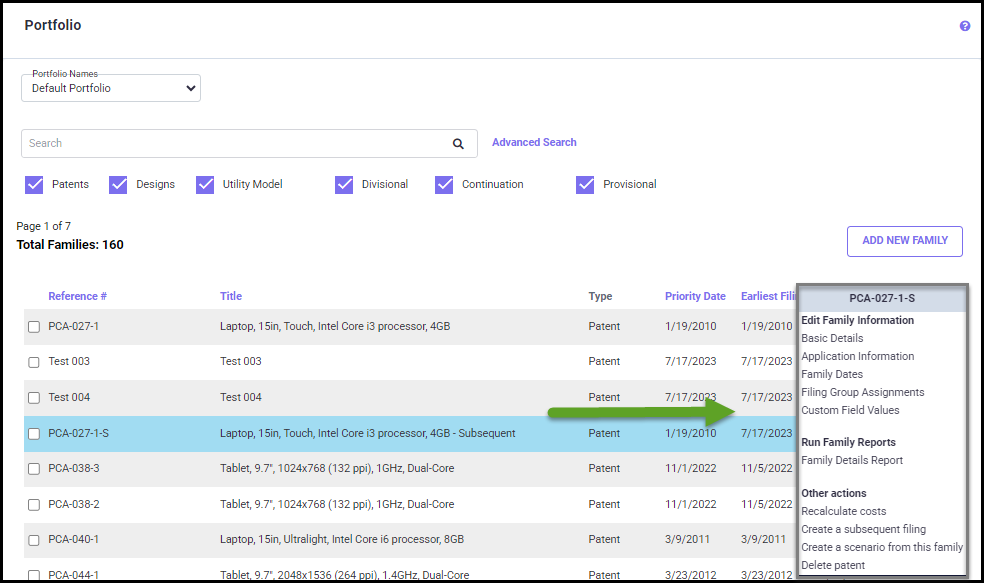
Edit Basic Details
The screen shown below is used to enter or change the “basic details” concerning the patent family, such as Family ID, Title, countries applied to, counsel, and grouping information.
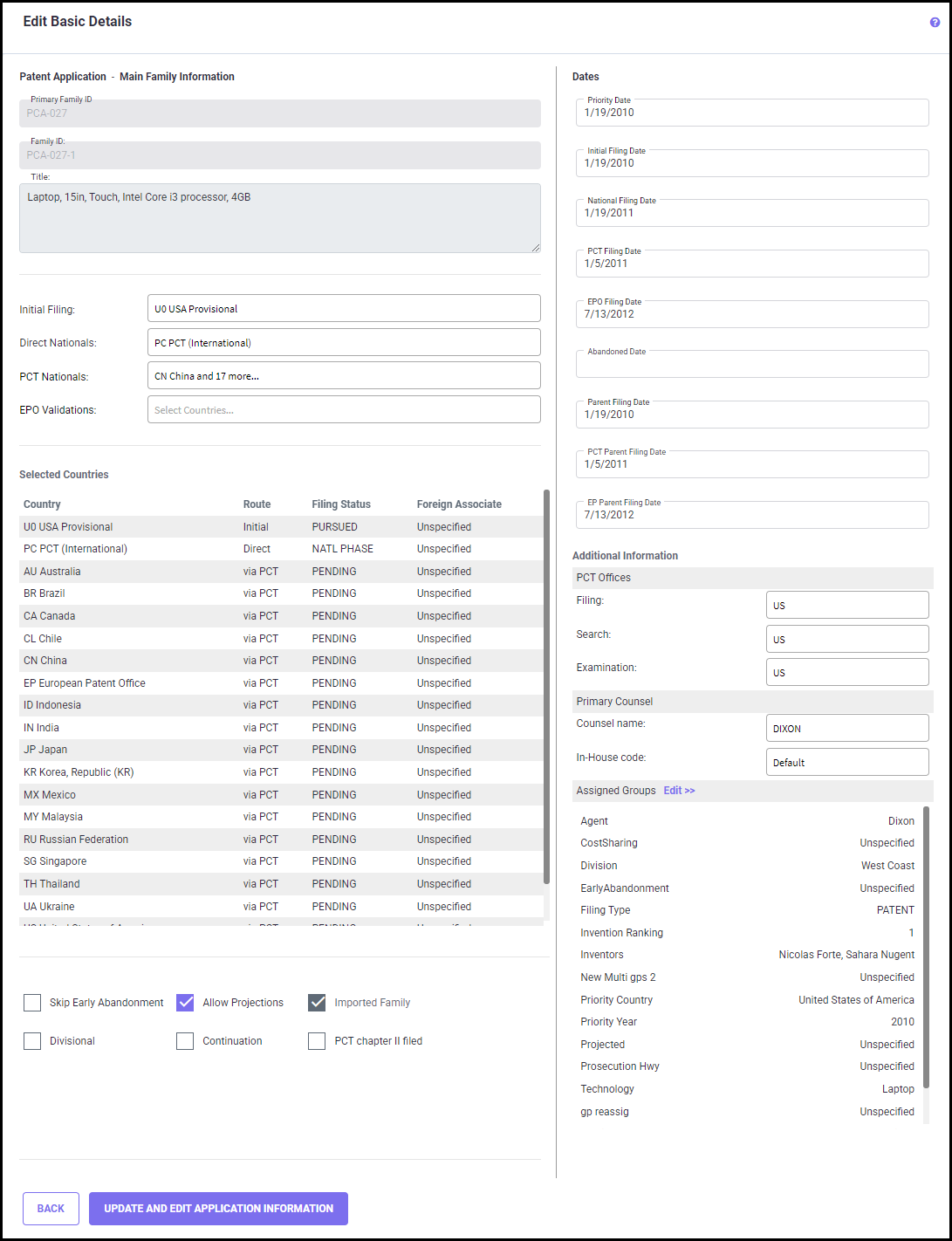
This process is discussed in detail in the Edit Basic Details section.
Edit Identifying Numbers
Based on both the type and destinations you have entered for the application; various at-tributes of the application will automatically be selected and will appear in one of several Patent Application Information screens (shown below). These screens are used to enter ap-plication-specific data for filings in the Patent Family such as the number of pages in the ap-plication, the number of pages of drawings, the number of claims, etc.
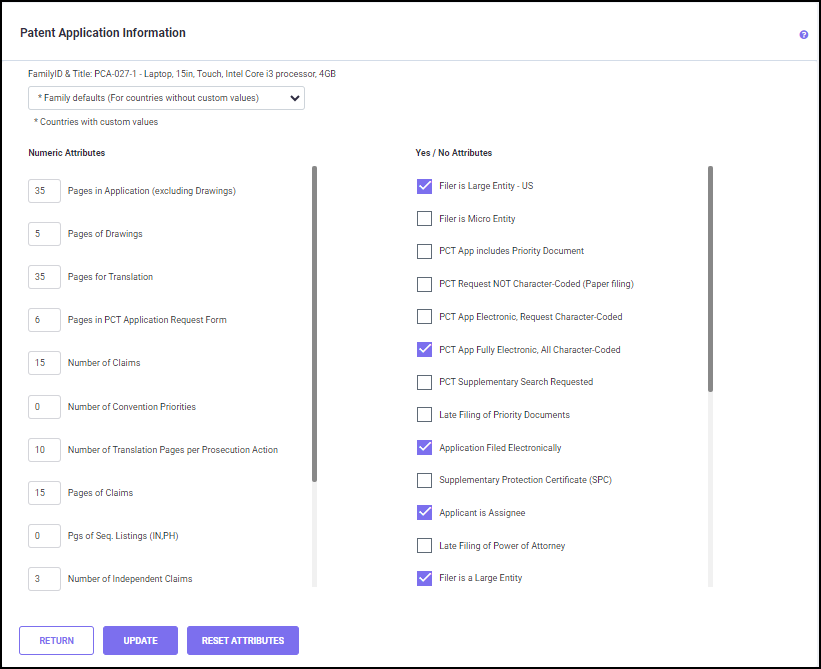
This process is discussed in detail in the Application Information section.
Recalculate Costs
After choosing a patent family, you can select the Recalculate Costs option. The software will calculate costs and/or dates based on supplied information. For example, assume only a fil-ing date was specified for a given patent application, but no Exam or Grant dates had yet occurred. Based on the usual number of years to Exam or to Grant, these dates can be ‘calcu-lated’ (i.e., estimated). Thus, while the costs associated with filing patents (e.g., Official Fees, Associate Charges, etc.) may be known today (based on past fee schedules), we estimate the costs for future dates. Cost estimates will vary based on the current exchange rates.
Application Dates
This option is included so the user may change some of the dates of the patent. For example, if a patent is granted, that date is entered on this screen. As another example, after review-ing some of the reports, you may decide that the Grant process for a particular country will take 6 months more/less time. As this may affect your estimates, you are able to enter the new date, recalculate, and see the different effects in the new reports. Additionally, you can use this process to enter abandoned dates of patents in particular countries.
This process is discussed in detail in Family Dates.
Family Details Report
Using this option, you can view a detailed report of cost estimates in MS excel format (shown below).
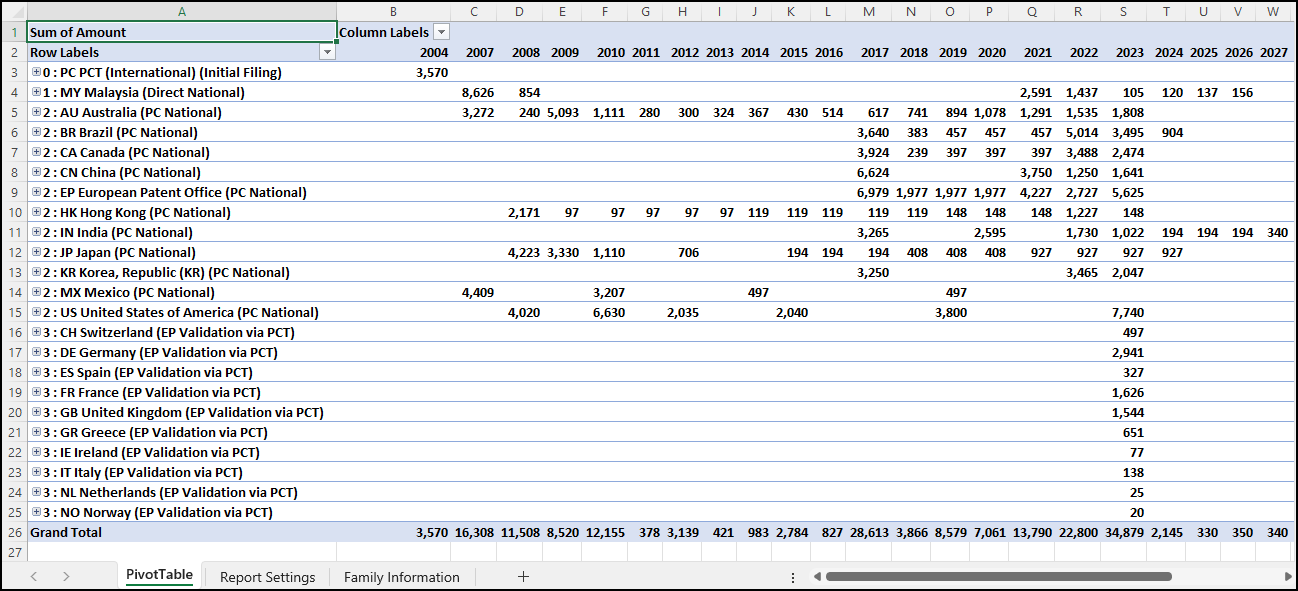
Portfolio Analysis
Once you have input the data for your patent families, and you are ready to create some portfolio cost analysis reports, choose the Portfolio Analysis menu item from the Estimator - Patents screen and the following screen (shown below) will appear.
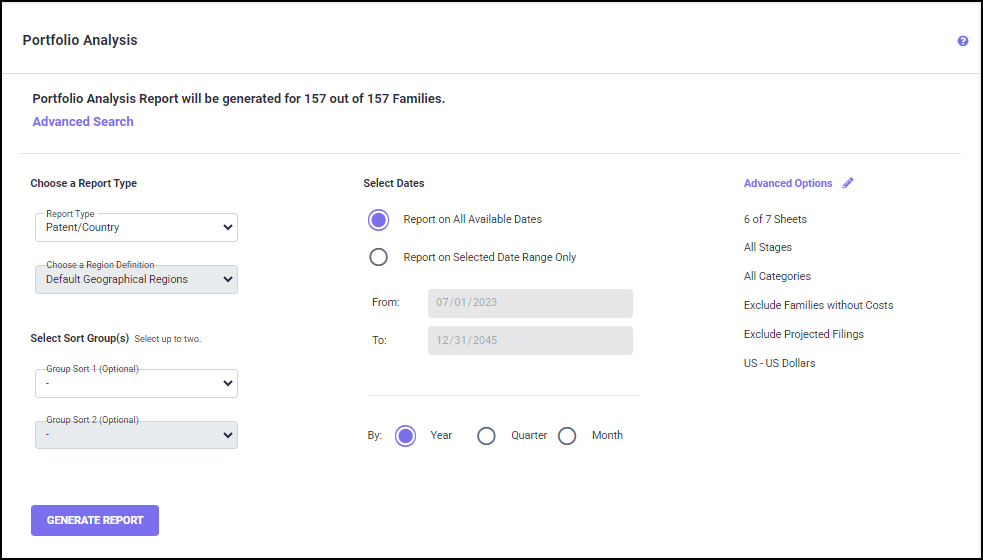
The Portfolio Analysis menu item helps you to generate reports that enable you to view to-tals of your entire portfolio (or multiple selected families) summarized in various ways. This option offers multiple ways of selecting and displaying your data.
Advanced Search options help you find families in your portfolio based on advanced search criteria. You can filter the families by Family ID/Title, Groups, Date Range, Applica-tion Type, and other criteria to run specific pivot table reports. You can also save the defined settings for future use.
Select the patent families using the advanced search option and choose a report type from various analysis spreadsheets (by Patent/Country, Group/Country, or Group/Region)
Click the GENERATE REPORT button to create the selected report. For more information on setting up your reports, see Portfolio Analysis.
SCENARIO AND STRATEGIES
The Scenarios and Strategies options on the Estimator tab are tools that provide cost esti-mates for a wide variety of future patent filing patterns. It allows for unlimited combinations of user-specified filing patterns and associated cost factors, coupled with the various analysis features of the Portfolio Estimator.
The Scenarios, Strategies, and Strategy Analysis sections are used as the main steps in creat-ing what-if scenarios and strategies; and to easily assess the value of a future strategy. Set-ting up the strategy using this step-by-step process creates a variety of detailed analysis re-port options for your review.
A “Scenario” is a patent filing pattern that covers a set of countries and filing dates. Think of it as a hypothetical patent family constituting patent applications that can be filed to a set of countries going through various routes. The costs for a Scenario (when applied to a Strategy) are calculated based on an initial filing date, just like a real patent family. Howev-er, filing dates for scenarios are not fixed, and in fact are automatically re-adjusted by the Strategy Planner during its analysis mode.
A “Strategy” is a pattern of one or more Scenarios filed at various times in the future and repeated on a regular basis. Within a Strategy, any of the Scenarios can be used any num-ber of times. Each is assigned an initial filing date, plus subsequent filing dates into the fu-ture at regular intervals. You can also assign cost factors applicable to each Scenario used within a Strategy.
“Strategy Analysis” is simply the grouping of one or more Strategies, combined to form a single spreadsheet report. This report can be broken down by individual Scenario, and combined to get total costs by country, year, quarter, etc.
For Detailed instructions on setting up your own Scenarios and Strategies, refer to Scenarios and Strategies help sections.
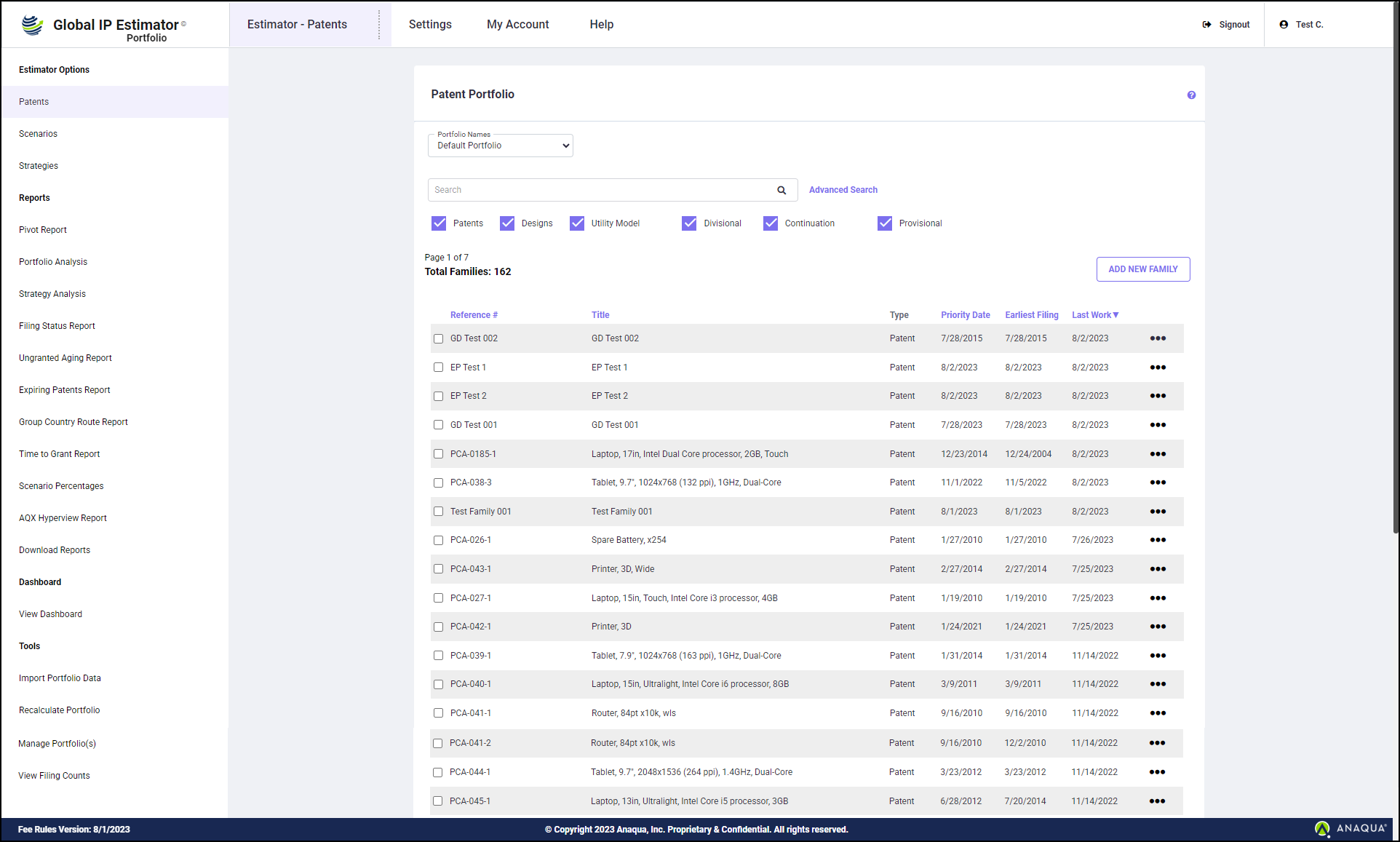
Portfolio Estimator Home screen: The Initial Screen has multiple tabs at the top. These tabs are used to access the various menus (Estimator-Patents, Settings, My Account, and Help).
Estimator - Patents
The Estimator tab is divided into 4 sections on the left side menu as shown in the above fig-ure. Each section allows you to perform the following tasks:
Estimator Options: run estimates for Patent Portfolio, Scenarios, and Strategies.
Reports: run various types of reports and view (and/or print) settings that are being used to calculate cost estimates for the analysis.
Dashboard: view your portfolio dashboard.
Tools: import data, recalculate costs, manage portfolio(s), and view filing counts.
Settings
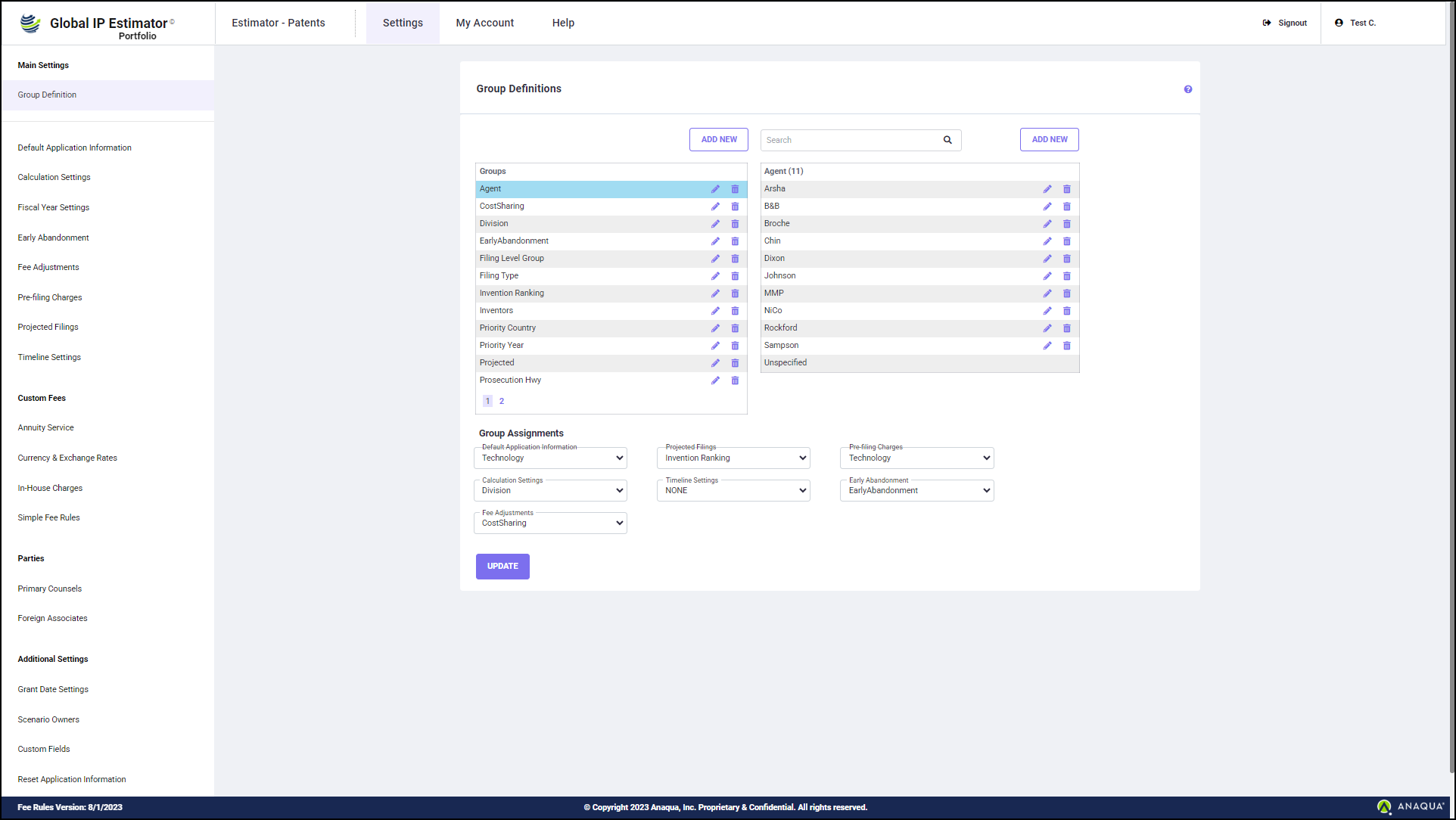
The User-Settings tab is divided into the below sections that allow you to perform the follow-ing tasks:
Main Settings: view and modify defaults used to calculate cost estimates for the analysis re-ports. This data includes various user-defined settings.
Custom Fees: change Annuity service fees, In-House charges, Simple fee rules, set calculation currency, and view exchange rates.
Parties: customize primary counsel and foreign associate fees.
Additional Settings: customize the Grant date settings, add scenario owners, set custom fields, and reset application information.
My Accounts
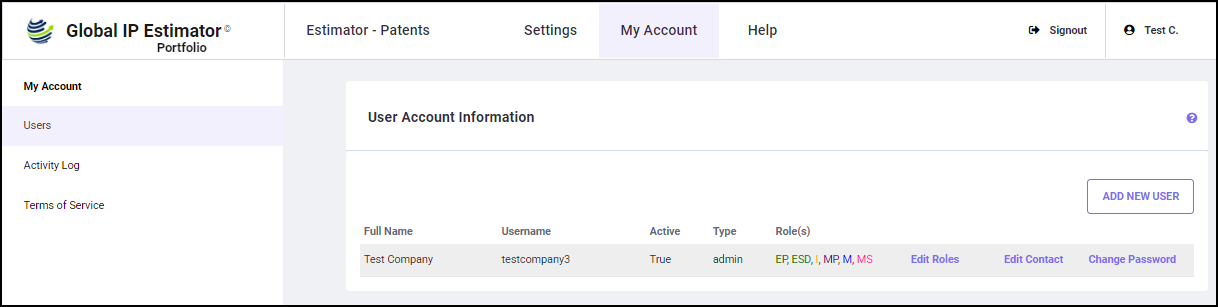
Here you can add new users, edit user roles, edit contact information, change password, and view activity logs.
Help Menu
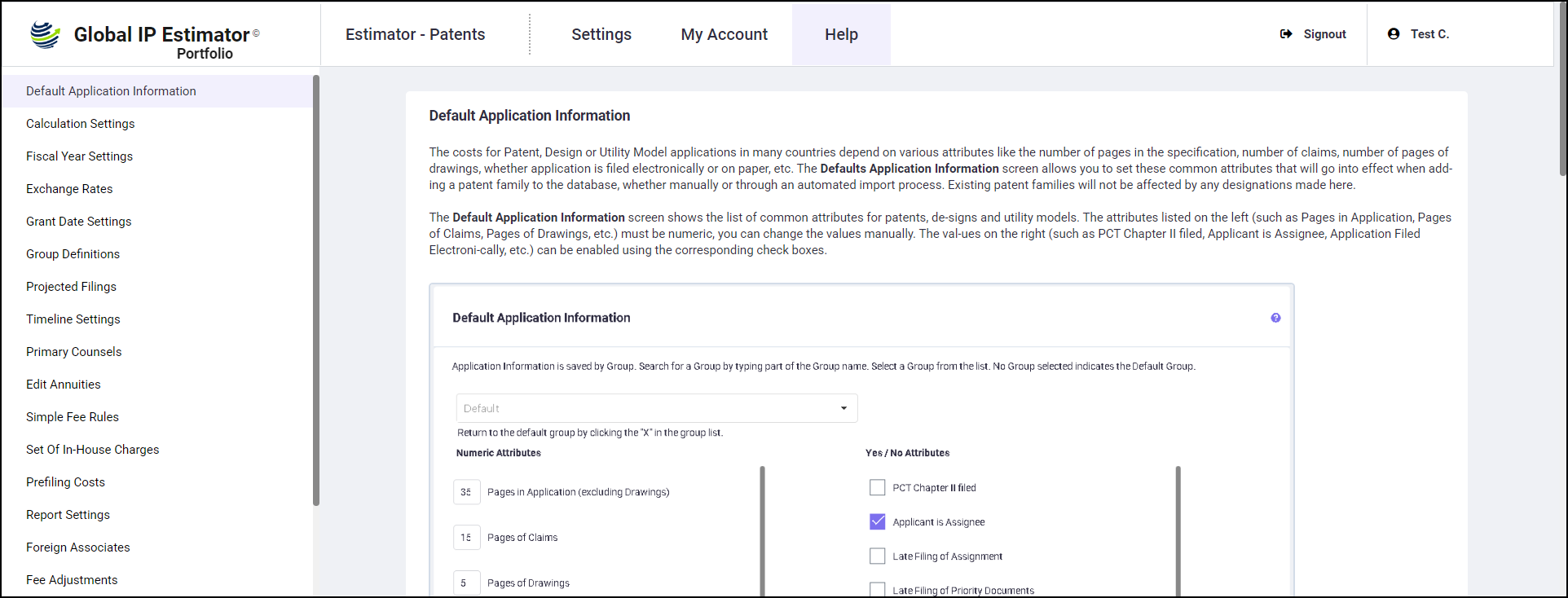
The Help Menu (shown below) provides access to the Help screens and user guides.
GETTING HELP
Help Button
Help can be accessed by clicking on the Help icon
on any screen for which it is available. The Help button is available in the upper right-hand corner of the active screen area. From the Help system, you can choose to review information by content, index, or search mode.
Help Menu
The Help menu option is available on the menu bar of all Global IP Estimator™ Portfolio Online pages and it gives additional information for working in all areas of the software, from preparing basic estimates to advanced editing of settings and values used within the system.

Technical Support
System Requirements
Our software is compatible with most modern browsers such as Chrome or Edge. JavaS-cript needs to be enabled.
Purchase
Instructions on how to purchase estimates may be found in Purchase / Pricing.
Running Estimates
Instructions on how to run an estimate may be found in Online Estimate / Overview. There are no known issues regarding the running of an estimate.
Contact Us
Please send us your comments, questions, and suggestions by filling out the Online Form.
If, after reading the Help Menu and accessing the Help sections, you feel you need further assistance, please contact our Technical Support by calling Quantify IP at +1 (808) 891-0099; by sending email to peosupport@anaqua.com.